About this manual
This manual covers what hundekraft 3.0 adds to the original OP-1. That is a lot: the hundekraft synths and effects, chord mode, op1r's synths, effects, drum+, sequencers, quad LFO, sample editor, tape and system additions, ultralazr's Musica Obscura sounds, the storage, naming, scale and undo tools rebuilt from Maiko Pruett's #249, four tapes, tape edits, sampler tools and a MIDI sequencer.
Links from the workshop show the manual for your selected plugins. Readable URLs carry the version and any excluded plugins, for example manual.html?version=3.0&without=sid,oxbow#father. They work in another browser too. Choose Show everything to see all sections; a plain manual.html link opens the full manual. Encoded selection links are no longer supported; open the full manual or follow a new link from the workshop.
Stock OP-1 features (tape, mixer, album, the factory synths and effects) are not repeated here. Teenage Engineering's own guide covers them well: teenage.engineering/guides/op-1/original. Where a new feature sits on top of a stock one, you get a sentence of context and a link.
How to read the controls
The OP-1 has four encoders. This manual calls them by colour, left to right: blue, green, white and orange. Some older op1r notes call the fourth one red. It's the same knob.
- Turn an encoder to change a value. Push an encoder to press it like a button.
- Press a key, or hold it while you do something else. "Shift +
 " means hold Shift and press .
  to
to  are the four keys under the screen. COM is the album key at the top right (COM is its Shift function),
  the sequencer key, and
  ,
,  and
and  the three tape-edit keys.
- Sound keys 1 to 8 are the eight small numbered keys to the right of , under the encoders. They store and load sounds.
The key screens have numbered dots. The list under the picture says what each number shows. Dot colour matches the encoder that moves that part.
What's new in 3.0
- Amp: play live input through a compressor, tone control and drive, with a tuner on T2.
Gin adds optional drum synthesis:24 sounds per kit, per-sound A/B morphing, a full editor and eight factory kits. It keeps four synthesis voices and appears alongside DBOX and DRUM+. See Gin.
Choose which sounds and tools to install, add your own plugins, and update them from the workshop. The additions from 2.7.2 are still here. New:
- Send updates over USB. Install 3.0 once through the update menu. After that the workshop sends new builds straight to the OP-1, and it can add, update or remove single plugin files without a whole firmware update. You can also add your own plugins. See Send it over USB.
- New synths: EVA, a space choir over the radio, MBIRA, a thumb piano, Oxbow, an OB-style polysynth with normal OP-1 presets, and SID, an 8580-inspired chip synth.
- New effects: STUTTER, a stutter locked to the beat, HAIL, clouds of grains, plus Maiko’s Crush, Warble and Plate, and Father, an original stereo ambience reverb.
- Aether and sampler+: a tilt theremin and expanded synth sampler. See Aether and Sampler+.
- Randomiser: make variations with Shift + , step back with Shift + . See Randomiser.
- More controls: smooth the loop join in In a room, and view audio, voice and plugin details in the resource monitor. See Clouds, Reverb, In a room and Resource monitor.
- C64 arpeggiator: an editable pitch table with per-step dwell and gate. See C64 arpeggiator.
- Four tapes, each with its own tracks, loop, tempo and album. See Four tapes.
- Tape edits to build songs while they play: merge, copy the loop, paste after it, bounce. See Tape edits.
- Undo, seven steps back, now with a popup. See Undo and redo.
- Sampler tools: zoom, a tuner with retune, and fit a sample to 1 to 8 bars. See Sampler tools.
- Storage tools rebuilt: FILE, now with a flash check, and a fix that stops recording from wrongly retiring good flash. See Safer recording.
- MIDI sequencer: record notes and CCs on four tracks that play with the tape, plus CC control of the synth's knobs. See MIDI sequencer.
- Safer starts. Plugin files that fail their loading checks are skipped. See Go back, or get unstuck.
Quick start
This chapter takes you from nothing to a working hundekraft OP-1 with presets. Most of the time goes to waiting while the OP-1 installs.
What you need
- An original OP-1. Not the OP-1 field: this firmware does not run on it.
- A USB cable and a computer with a current browser (Chrome, Safari, Firefox or Edge).
- Teenage Engineering's unmodified firmware file
op1_246.op1(R246). The workshop checks its fingerprint and refuses anything else, including op1r and other patched files. - Optional: a backup of your tapes and sounds. Updating keeps them, but a backup is cheap.
Build your firmware
The workshop builds the firmware in your browser. Nothing is uploaded and you don't need an account.
- Open the workshop at hundekraft.github.io/op1-workshop.
- Choose what you want. The tabs sort everything by kind: synths, effects, play and sequence, tape and sampler, system and storage. Cards with a box are ticked by default; untick one to leave it out. Cards without a box are always in. Lander is a separate firmware option, off by default. Each card has a link to its page in this manual.
- Your build has room for 300 user synth presets (the stock OP-1 has 100). With every sound selected, the preset pack has 152.
- Drop
op1_246.op1on the page, or choose it. The page checks the file and says so when it's the right one. - Press "Build my firmware". The first build downloads the Python runtime the builder uses, so it takes a little longer.
- When the page says "Verified. Your firmware is ready to download.", download the firmware (
.op1) and the matching preset pack (.presets.zip).
Firmware downloads use hundekraft-3.0.3.op1, or hundekraft-3.0.3-lander.op1 with Lander enabled. The matching build report (.build.json) records the full configuration ID, selected plugins and firmware hash; keep it if you need to identify a build.
Install it on the OP-1
This is the OP-1's normal firmware update. It keeps your tapes, album and sounds.
- Switch the OP-1 off. Hold COM and switch it on. The firmware update menu appears.
- Press to choose "Upload firmware".
- Connect the OP-1 to the computer. It appears as a disk.
- Copy the hundekraft
.op1file to that disk. - Eject the disk on the computer, or press COM. The OP-1 unpacks and writes the firmware. This takes a few minutes.
- When the screen says "Please restart your OP-1", switch it off and on again.
The boot screen shows "hundekraft 3.0.3". That's how you know it worked.
Send it over USB
Once your OP-1 runs hundekraft 3.0, you don't need the update menu anymore: the workshop sends new builds straight to the OP-1 over USB. The first install of 3.0 still goes through the update menu.
- Choose the workshop plugins you want, and connect the OP-1 with USB. Use Chrome, Edge or Firefox on a computer; allow MIDI access when asked.
- Press Connect OP-1 to see what is installed, or press Update OP-1 to check and prepare changes in one action. After connecting, Refresh reads the installed plugins again. Cancel connection exits a pending MIDI permission request without sending anything.
- Review the proposed additions, replacements, removals and on/off changes. Unchanged plugins are collapsed. Resolve any control conflicts inline, then press Send update.
- Keep the cable connected. When the page says Confirm on OP-1, press on the instrument to restart and install, or
 to cancel file installation.
 - Wait for the tape screen. The workshop reconnects automatically and checks the installed files and settings before showing Update installed and verified. Check later stops waiting, including a stalled reconnect, without cancelling installation. Refresh can verify an early completed restart. The installation guard survives a page reload; plugin edits and Undo wait until the previous result is known. Firmware download remains available for recovery.
Update OP-1 always applies the workshop selection and your own plugins together. When no firmware upgrade is needed, it sends only changed plugin files, without asking for original R246. Unticking a workshop plugin proposes deleting its installed workshop file. A retained uploaded replacement remains yours until you choose Remove.
If a firmware upgrade is needed, the review explains it before you send. The same flow includes that upgrade and the reviewed plugin changes. An older updater that cannot accept uploaded plugin paths needs two passes: the review identifies saved uploads left out of the first firmware upgrade, and after 3.0 is verified you press Update OP-1 again to install them. If needed, the original R246 picker opens directly: choose the unmodified op1_246.op1 and preparation continues automatically, with a review before sending. The firmware is processed locally and is not saved between sessions. A full update can take a minute or two after transfer. No Format drive is needed.
The progress stages distinguish preparation, transfer, confirmation, restart and verification. Transfer reaching 100% means the files arrived, not that installation is finished. If USB is interrupted, reconnect and use Resume update; the page rechecks and reviews the changes before resuming. If verification cannot finish, Retry verification reads the device without sending files again. It checks all reviewed plugins, including unchanged uploads, and both saved and restarted on/off settings; failed or mismatching files are named. If you cancelled with T2, use Update OP-1 to prepare the update again. Download firmware instead remains available for first installation or boot-menu recovery.
Your own plugins
Want to build one? Start with Make your own plugin.
Open Your plugins in the same category list as synths, effects and tools. Drop a .knl or .op1p file there, or choose files. Each file must be at most 512 KB, the plugin loader's limit. The page checks the file and saves it in this browser. Press Update OP-1 to review it alongside your workshop choices. Own files are included in USB updates; firmware downloads contain the workshop plugins, so keep your own original files too.
Connecting also lists uploaded plugins already on the OP-1, including files installed from another browser or computer. Those files can be removed without having their original file locally. Remove marks an installed plugin Will be removed and offers Undo. Deletion happens on the next reviewed update after T1 confirmation. Once verified, the row and saved removal copy are cleared. Removing a file known not to be installed simply discards the pending addition. If no device has been checked, the removal is retained until the workshop can check whether deletion is needed. After sending, Verify first replaces Remove / Undo: deleting an installed file may already have happened. Refresh first. If the previous update remains unconfirmed and the installation wait has ended, Cancel pending files explicitly clears the live OP-1's staged file update before enabling Undo again. It does not undo saved on/off choices. A confirmed T2 cancellation makes Undo available immediately. Refresh and Undo never silently abort an update.
If an uploaded file replaced a workshop plugin that is still selected, Remove restores the workshop version; the review states this explicitly. Untick that workshop plugin too if you want neither version installed.
Catalog selections, own plugin files, pending removals and control-conflict choices are restored when you return. Storage belongs to this browser and site address: clearing site data removes it, and private browsing may discard it. If saving fails, keep the tab open. Sending is blocked if the pending-update receipt cannot be saved; download firmware instead or restore browser storage. If another workshop tab changes saved state, reload before updating; the page will not overwrite the newer selections. One workshop tab at a time can use the updater. Save choices / Load choices is a catalog-only JSON backup; it does not contain plugin files.
Identical healthy installed files are skipped. A selected workshop file reported as failed is sent again even when its reported CRC matches, so damaged or failed installations can be repaired. The review lists new, removed, switched and older plugins one per line, each with its own on/off switch. Plain updates and unchanged plugins fold into one line each that you can open. A recognizable older numeric version requires acknowledgement. Same-name replacements are identified before sending. Where declared controls conflict, choose which whole plugin stays on. The other file stays installed but its plugin is disabled. Compatibility warnings require acknowledgement when declarations are missing. Provider changes invalidate saved conflict decisions.
The page checks the device inventory again after review and before sending. File installation and deletion require T1 confirmation. On/off choices are saved before that confirmation: T2 cancels file installation but does not undo those choices. The review explains this when on/off choices change. Pending verification is saved until matching inventory confirms the result. Failed or skipped plugins appear in the review; an enabled plugin skipped after a failed boot can be retried by confirming the proposed restart.
A plugin runs as firmware code, so only add files from people you trust. If the OP-1 doesn't start after you add one, switch it off and on: it starts once without plugin files, and you can remove yours from the workshop.
Make your first sound
- Press
 , then hold Shift and press . The synth list opens.
 - Turn blue to wavetable (or any synth in your build) and press to load it.
- Play a few keys. The wave factory on screen comes alive while you play.
- Turn blue slowly. The sound morphs through eight wave shapes, from sine to digital.
Every synth and effect in this manual is picked the same way: Shift + for synths, Shift +  for effects, Shift + for LFOs and Shift + for sequencers.
Install the presets
Presets are not part of the firmware. They come in the preset pack and go in through disk mode.
- Unzip the
.presets.zipfile. Inside is asynthfolder with one folder per engine. - On the OP-1, hold Shift and press COM, then press for disk mode.
- Copy the folders inside
synth/into thesynth/folder on the OP-1 disk. - Eject the disk. The OP-1 restarts by itself, syncs the new files ("Sync after reboot") and waits for a key press.
The presets are in the preset browser: in synth mode hold Shift and press a sound key, turn blue to the engine folder and green to the preset.
Go back, or get unstuck
The firmware update menu is always there, even if the OP-1 hangs on the boot screen. A normal upgrade does not require Format drive.
- To try a different build, install it the same way: hold COM while switching on, then upload the new
.op1. - To go back to stock, install the original
op1_246.op1the same way. - If the OP-1 stops on the boot screen, hold COM while switching on and install a new build.
3.0 protects itself from broken plugin files. A file that fails its checks is skipped, and the OP-1 starts without it. If the last start didn't finish, it skips all plugin files once and tries them again the next time. A message at start says how many files it skipped, for example "1 plugin files not loaded". Plugins switched off in the workshop, including the loser of a key conflict, are left out of this warning.
A sound whose plugin isn't there anymore still loads: a missing synth plays as the stock Iter, a missing effect as the stock filter. The sound keeps its own engine and effect name, so it comes back as it was when you install the plugin again.
Factory reset (boot-menu 7) clears user sounds, tape and settings. Format drive (8) erases the filesystem and then asks for firmware to upload. Both destroy data: back up before using them. A complete firmware install replaces any unfinished USB update and its recovery state. Imported plugin files can survive a factory reset or a normal firmware install. Use the workshop’s installed-plugin review to identify and remove an unwanted file.
Where things live
Most new features hide behind a key combination. This table is the map. Each row links to its section.
| Feature | How to get there |
|---|---|
| Synths: hundekraft, op1r, Musica Obscura | , then Shift + |
| Effects: hundekraft, op1r, Musica Obscura | or  , then Shift + . As master effects: in the mixer, like stock , then Shift + . As master effects: in the mixer, like stock |
| Lander | Enable in the workshop and install, then hold + +  + +  |
| Chord mode | Shift + , then |
| Scale mode | , , hold Shift |
| MIDI sequencer | Switch on in settings, then hold and press |
| drum+ | , then Shift + , pick DRUM+ |
| Euclid, Dots, C64 arpeggiator, Oracle and Peal | Shift + |
| Quad LFO | or , then Shift + , pick QUAD |
| Four tapes | Hold and press to |
| Tape undo and redo | Hold and press  or or  |
| Tape edits | Shift + ; hold + , + , + Shift + |
| Sampler tools | On TE's sampler screen: push white to zoom, orange to fit to bars, Shift + push green to retune |
| Tape markers and punch-in | Tape screen: push orange. Hold +  for punch for punch |
| Count-in | Tape stopped: hold and press  |
| Sample editor | Hold (or ) and press |
| FILE storage view | Shift + COM, then Shift + COM again on the OP-1 tab |
| Flash check | In FILE, push blue |
| Name a sound | Hold a sound key |
| Resource monitor, USB output, Settings | Shift + , then , or |
| MIDI CC control, CC automation | From a computer or controller over USB |
| Oblique Strategies | Shift + |
Synths
Pick a synth with Shift + , like a stock one. hundekraft's own synths come first, then the ones from op1r (pcppcp's firmware, which hundekraft is built on) and from ultralazr's Musica Obscura.
Wavetable
Morphing waves. Analog ladder filter.
Two slightly detuned oscillators read eight single-cycle waves and morph between them. The sound then goes through a four-pole ladder low-pass filter that can scream when you push it. Think classic analog pads and acid lines, with some vocal and digital colours on top.
Load then Shift + pick wavetable
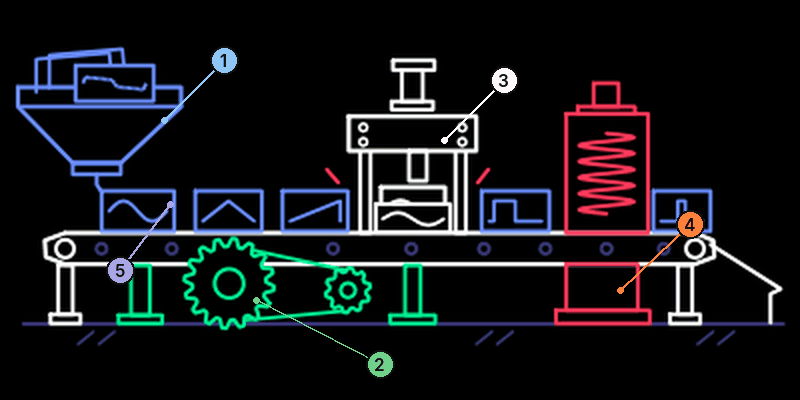
- 1Pointer on the wave rows: the wave blue has chosen
- 2Gears and shift lever: detune on green
- 3The press lowers into the funnel as white closes the filter
- 4Spring and bubbles: resonance on orange
- 5The live wave rides the conveyor while you play

Wave position. Morphs sine, warm, triangle, saw, square, pulse, vocal, digital

Detune between the two oscillators. Fattens and moves the sound

Filter cutoff

Filter resonance, up to self-oscillation. Also drives the filter harder
Try this
Each bar is a share of that encoder’s range. The encoders turn endlessly, so use it as a guide while you watch the screen. Where a preset is named, it’s in the workshop’s preset pack.
18%43%46%18%Long attack on T2. Preset: warm pad.
43%5%27%79%Sweep white while you play. Preset: acid.
0%3%92%95%A sine through a ringing filter. Preset: whistle.
Taffy
Elastic, CZ-style phase distortion.
Phase distortion in the style of Casio's CZ synths. A plain cosine is bent out of shape: the more you bend it, the brighter it gets. There is no filter. Brightness comes from the bend, so the sound stays clean and a little glassy.
Load then Shift + pick taffy
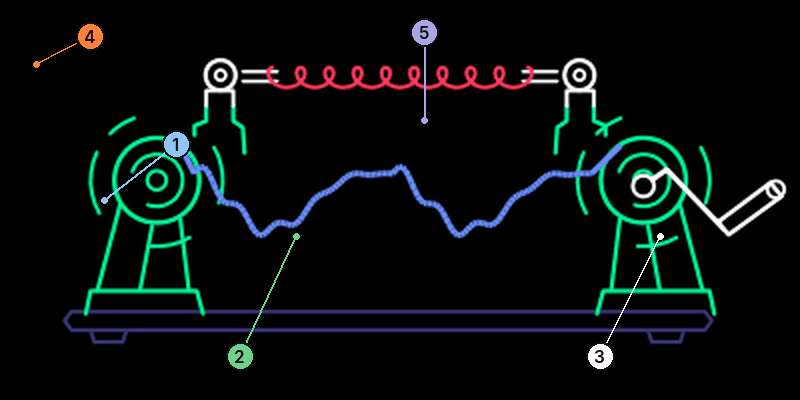
- 1The jar shows the wave shape on blue
- 2Tape measure: distortion on green
- 3Crank: envelope depth on white
- 4Spring: resonance on orange
- 5The pink ribbon is the live waveform
Wave shape. Saw, square, pulse, saw-pulse, morphing in between
Distortion amount. Bends the cosine toward the chosen shape
Envelope depth. Extra bend at the start of each note that fades in about 0.2 s
Resonance. Blends in the CZ resonant wave, which follows the distortion
Try this
Each bar is a share of that encoder’s range. The encoders turn endlessly, so use it as a guide while you watch the screen. Where a preset is named, it’s in the workshop’s preset pack.
0%27%67%0%Bright attack that settles. Preset: cz brass.
82%67%73%18%Hard, funky pluck. Preset: clav.
0%9%49%79%Resonant and glassy. Preset: glass keys.
Pew
Drawbar organ. Rotary speaker.
A drawbar organ through a rotary speaker. The nine drawbars are grouped in threes, so each encoder pulls out three bars at fixed ratios. The rotor has a horn for the upper bars and a heavier drum for the low ones, and both take time to speed up and slow down, like the real thing.
Load then Shift + pick pew
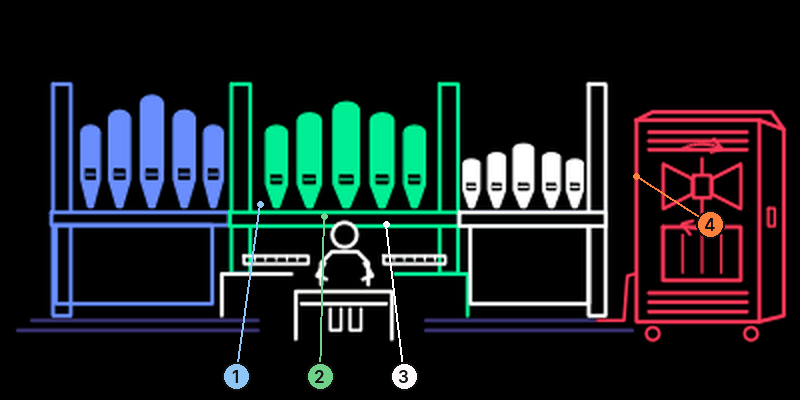
- 1Low drawbars on blue
- 2Middle drawbars on green
- 3High drawbars on white
- 4Horn, drum and the red arrows: rotor speed on orange
Low drawbars: 16', 8' and 5 1/3'
Middle drawbars: 4', 2 2/3' and 2'
High drawbars: 1 3/5', 1 1/3' and 1', plus key click
Rotor speed. Turn it fast to hear the horn and drum catch up
Try this
Each bar is a share of that encoder’s range. The encoders turn endlessly, so use it as a guide while you watch the screen. Where a preset is named, it’s in the workshop’s preset pack.
100%61%12%12%Full and slow. Preset: sunday.
100%100%37%92%Everything out, fast rotor. Preset: gospel.
79%24%0%37%Warm, no click. Preset: jazz.
Elg
The antlers follow the interval chosen with blue.
Load then Shift + pick elg
Slow-moving drones with a low growl.
Elg is Norwegian for moose. Three saws per voice (the root, a detuned root and a third saw at an interval above) go through a growl drive and a resonant low-pass filter. A slow LFO moves the filter and the level, a little random drift moves the pitch, and every voice moves on its own, so chords breathe and drift apart.
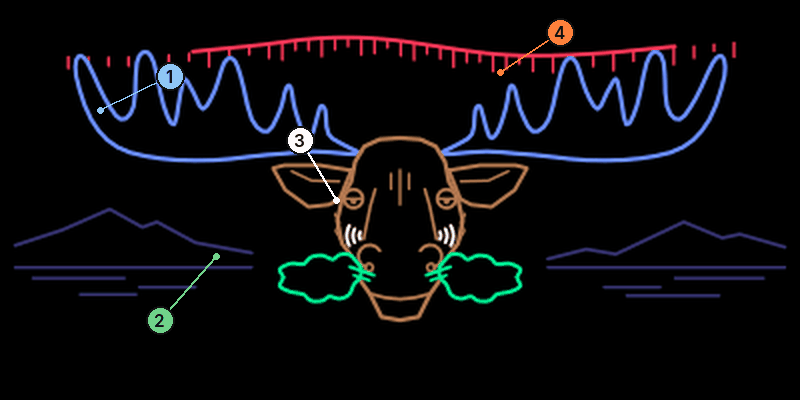
- 1The moon rises with the interval on blue
- 2Fireflies circle wider with detune on green
- 3Hum arcs at the mouth: timbre on white
- 4The aurora grows and waves with movement on orange
Interval of the third saw. Steps, not smooth
Detune between the saws. Slow beating to wide chorus
Timbre. Opens the filter and adds growl at the same time
Movement. LFO speed and depth on filter, level and pitch drift
Try this
Each bar is a share of that encoder’s range. The encoders turn endlessly, so use it as a guide while you watch the screen. Where a preset is named, it’s in the workshop’s preset pack.
2%27%43%37%Fifth above, slow swell. Preset: moose call.
5%37%37%92%Octave + fifth, lots of movement. Preset: northern light.
0%9%31%12%Unison, almost still. Preset: hum.
EVA
An astronaut's choir over the helmet radio.
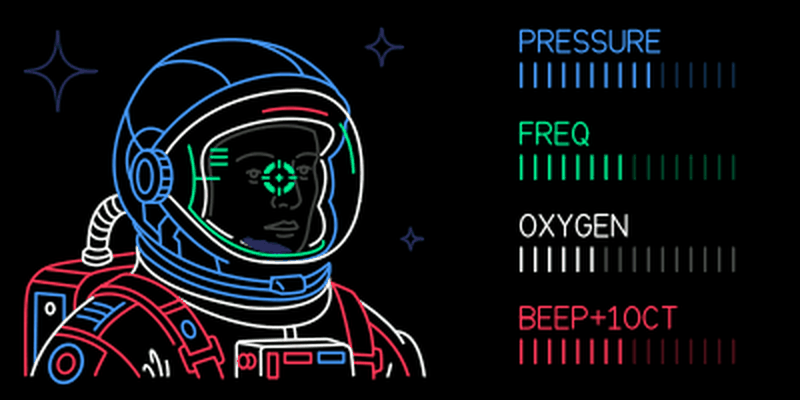
A warm, sung pad with the sound of early-80s film scores. Two slightly detuned oscillators, a saw and a soft pulse, go through a lowpass with a gentle vowel colour on top, then through a wide ensemble chorus. Each voice has a slow vibrato and drifts a little on its own, so held chords slowly shift. The helmet radio sits on Com: low settings just warm the sound up, high settings bring in hiss, dropouts and radio beeps tuned to the played key.
Load then Shift + pick eva

Brightness and attack. Low is soft, slow and far away; high is bright, quick and close
The vowel. Pitch comes from the keyboard
Air and width: breath noise in the attack, chorus depth and a slow swell
The radio. Up to 40 % it warms and rounds the sound off. Above 40 % the channel gets thinner, with hiss, dropouts and beeps; from 75 % the signal is also crushed. Push to edit Beep Oct instead
Try this
Each bar is a share of that encoder’s range. The encoders turn endlessly, so use it as a guide while you watch the screen. Where a preset is named, it’s in the workshop’s preset pack.
61%50%37%9%Warm ah, a touch of radio. Preset: space choir.
34%12%67%18%Soft, dark oo with a slow tremolo. Preset: tears in rain.
79%95%55%6%Bright ee on a delay. Preset: ee halo.
58%34%18%70%Beeps, hiss and dropouts. Preset: houston.
Push orange to edit Beep Oct, then turn to choose 0, +1 or +2 octaves above the played note. The row shows BEEP+0OCT, BEEP+1OCT or BEEP+2OCT; the compact selector cycles through the three choices. Push again to return to Com amount. The setting is saved with the sound; the default is +1 octave. Very high beep pitches are capped around 8.27 kHz to avoid folding back.
MBIRA
A thumb piano with bottle caps.
A kalimba: every note plucks a steel tine, rings in a wooden box and fades by itself. Holding the key doesn't stretch the ring, but letting go starts the release on T2, so a short release cuts it. Turn up the buzz and bottle caps rattle while the tine swings.
Load then Shift + pick mbira
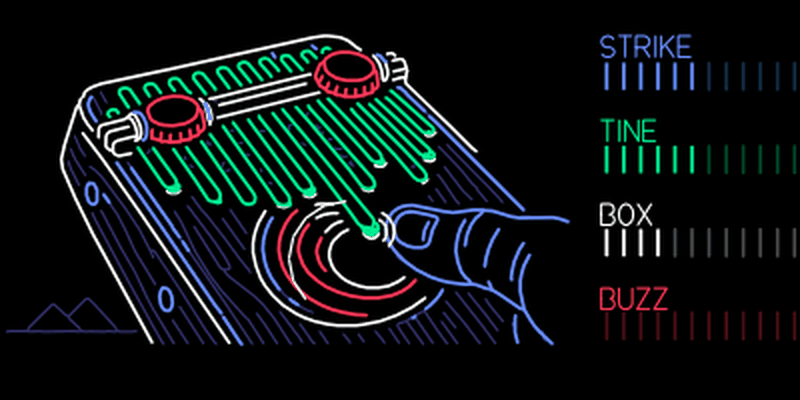
Soft thumb, round and dark, to a hard nail with a bright click
Push: Ring: how long notes ring, 1.6 to 8 seconds
The tine's material: wood, steel in the middle, glass
Push: Double: a second, slightly sharp tine that beats against the first
The wooden box's resonance and thump. Off at zero
Push: Wah: a band-pass sweeping at about 5 Hz
Bottle caps rattling while the tine swings wide
Push blue, green or white to reach its page-2 setting, push again to go back. The labels on screen change to RING, DOUBLE and WAH. Page-2 settings are saved with the sound.
Try this
Each bar is a share of that encoder’s range. The encoders turn endlessly, so use it as a guide while you watch the screen. Where a preset is named, it’s in the workshop’s preset pack.
43%50%37%0%The plain instrument.
49%50%43%18%Wah and a second tine on page 2.
79%92%18%0%Bright glass tines.
Amp
Your input is the instrument.
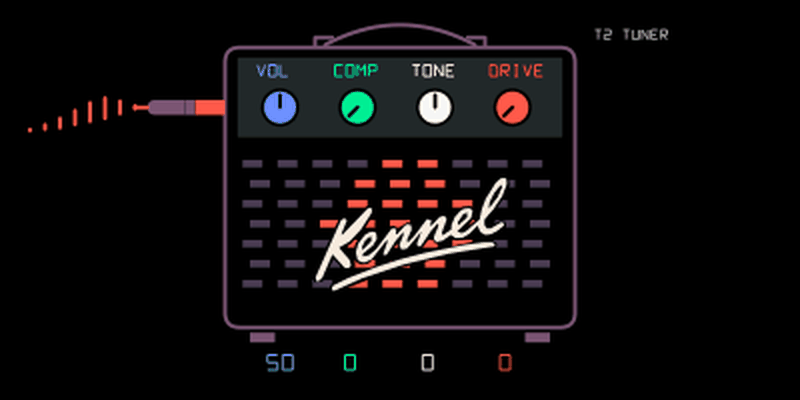
To enable Amp:
- Select Amp in the workshop’s Synths list, then build/install the firmware or use Update OP-1 to send the update.
- On the OP-1, press synth, hold Shift and press T1. Turn blue to amp, then press T1 to load it.
- Press the input key to enable monitoring. Hold Shift and press input to choose mic, line, radio or USB.
- Feed audio into the selected source and raise Amp’s blue Volume. You do not need to hold a keyboard key. Press T2 for the tuner or T3 to add an effect.
Amp processes the selected mic, line, radio or USB input continuously. No key needs to be held. Press the input key to enable monitoring and use Shift + input to choose the source, then use T3 for another effect. Amp is inspired by the OP-1 Field’s live-input instrument.
Output level; 0 mutes, 50 is unity, 100 adds about 6 dB
Compression; 0 is off, higher values tame peaks
Warm to bright; centre is neutral
Soft saturation; 0 is clean
T1 shows the four values and an animated input waveform. T2 is a tuner for a single sustained note; the centre mark is in tune and the readout shows cents sharp or flat. Use T3 to add an effect. T4 LFO modulation is unavailable for Amp. Keyboard notes, Chord and sequencers do not gate or transpose the input. Parameters save with the normal sound patch.
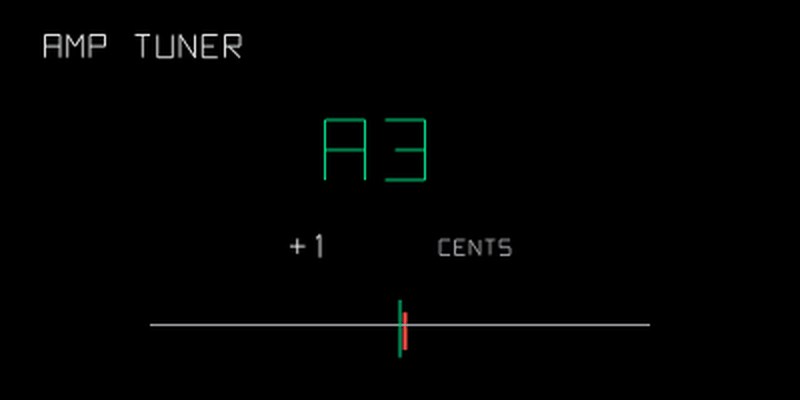
Choose mic, line, radio or USB as the input. MASTER resampling is silent in Amp.
Oxbow
Push blue to choose Wave, or green to choose Filter type.
Load then Shift + pick oxbow
An OB-style polysynth, after zvenson's OberVave.
Two oscillators with sync and cross-modulation into a state-variable filter, an internal filter envelope and a little vintage drift per voice. It comes from OberVave, zvenson's polysynth for the M-VAVE FM-1. Use normal OP-1 presets to save and recall sounds.
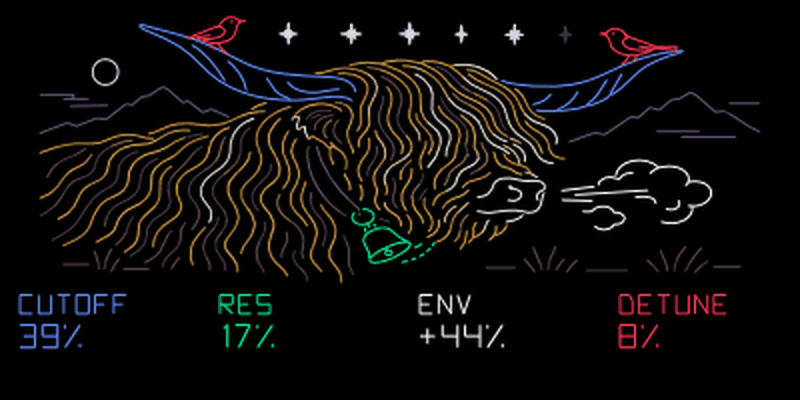
The filter's cutoff. The horns widen as it opens
Push: Wave: saw, pulse, saw+pulse, sync, cross-mod or fifth
The filter's resonance. The bell swings with it
Push: Filter type: LP 12, HP 12, BP 12, notch, LP 24, SEM
Filter movement: centre is zero; either side opens or closes the filter with each note
Push: Drive: extra drive before the filter
The second oscillator against the first. The birds walk out along the horns
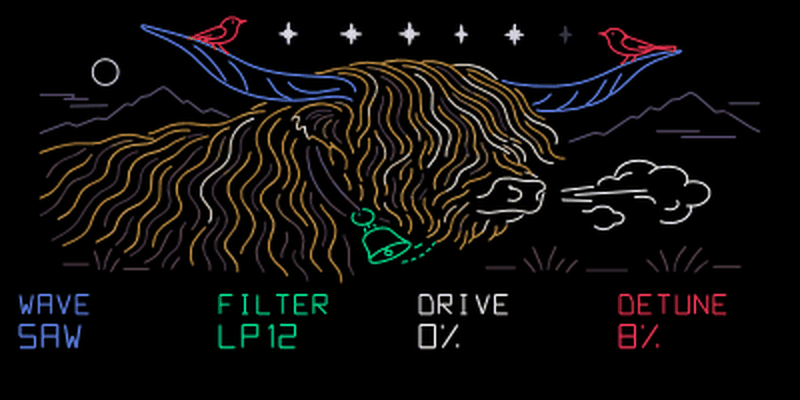
The bottom row names the control each encoder is editing. Push blue, green or white to switch independently to Wave, Filter or Drive; push again to return to Cutoff, Res or Env. If white shows DRIVE, push it to reach the filter envelope amount. Settings are saved with the sound. The preset pack includes 16 Oxbow sounds.
SID
Turn blue to choose a waveform and white to open or close the filter. The cutoff number shows control position, not hertz.
Load then Shift + pick sid
An 8580-inspired chip synth.
Based on Hermit’s cRSID, SID combines three oscillators per note with a resonant filter. The modes cover triangle, saw, pulse, noise, oscillator sync and ring modulation. This is a SID-inspired instrument, not a cycle-exact C64 or 6581 emulator. Use the OP-1's normal ADSR page to shape each note.
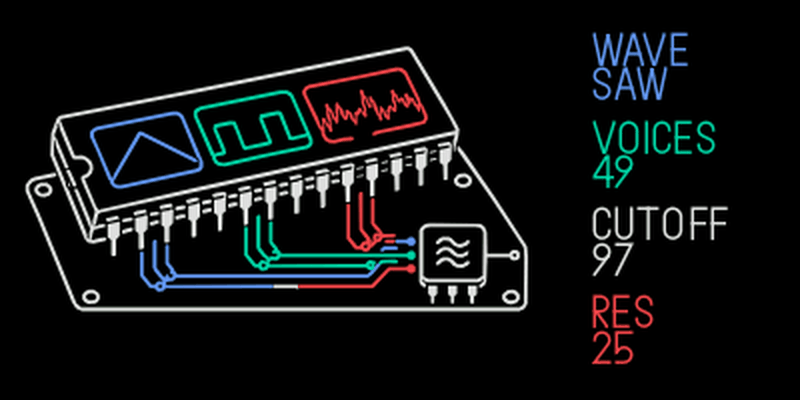
Triangle, saw, pulse, noise, sync or ring
In triangle, saw and noise: blend the octave and fifth. In pulse: width, about 3–97%. In sync and ring: source/carrier ratio, about 1–4 times
Open the filter, 00–99
Emphasize the cutoff, 00–99
There is one control page; encoder pushes and Shift add no controls. Save the sound with the normal synth snapshot gesture.
Supersaw
Detuned saw stack.
Two detuned saws with a sub oscillator and drive. The trance lead and the hoover live here. The screen is a chainsaw: the chain teeth draw the waveform and the saw shakes with drive.
Load then Shift + pick supersaw
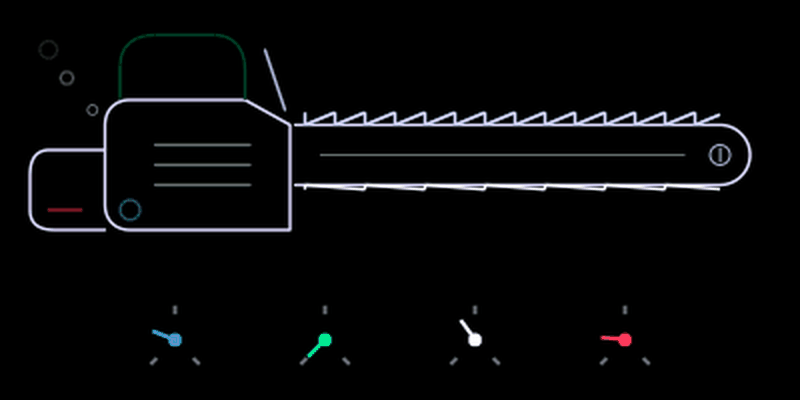
Detune between the two saws, up to about 1.6 %
Shape, from saw to square
Sub oscillator level (sine, one octave down)
Drive, 1x to 5x into a soft clipper
FM Bell
Turn blue to choose the frequency ratio. The dial follows your choice.
Load then Shift + pick fmbell
FM bells and e-pianos.
Two-operator FM for bells, e-pianos and metal. The clapper swings with the envelope and the rings beside the bell follow the modulation.
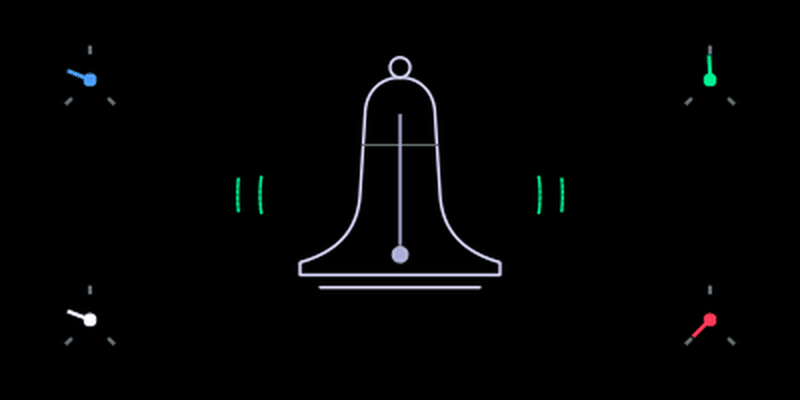
Modulator ratio, 0.5 to 8 in half steps
Modulation index (brightness)
How fast the index decays. More is more bell-like
Feedback on the modulator. Adds grit
Granular
Plays the slot's sample as grains.
A granular engine that plays a sampler recording as clouds of grains. C4 plays the recording at its original speed.
Load then Shift + pick granular
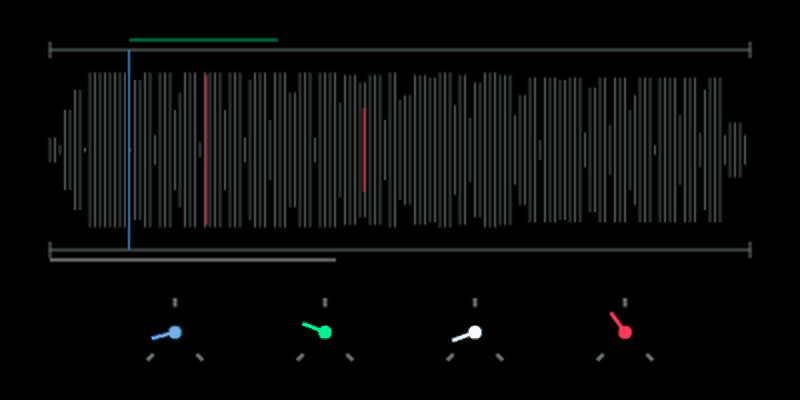
To get sound into it:
- On a granular slot, press the input key (the microphone key) and record, just like on the sampler. The slot stays granular.
- Or: pick SAMPLER, record or load a sample, then switch the slot to GRANULAR. It reads the sampler's recording.
Position in the recording
Random start jitter, and a little random pitch
How many grains overlap
Push: Page 2: sample gain 0x to 4x
Aether
A tilt-controlled theremin.
Hold a key to choose the note, then tilt forward/back to bend its pitch. Raising the right side reduces volume; shaking adds vibrato. The angle at note-on becomes home. The satellite dish follows tilt and the radio waves follow the note envelope. Stock mono, legato and portamento modes still apply.
Load then Shift + pick aether
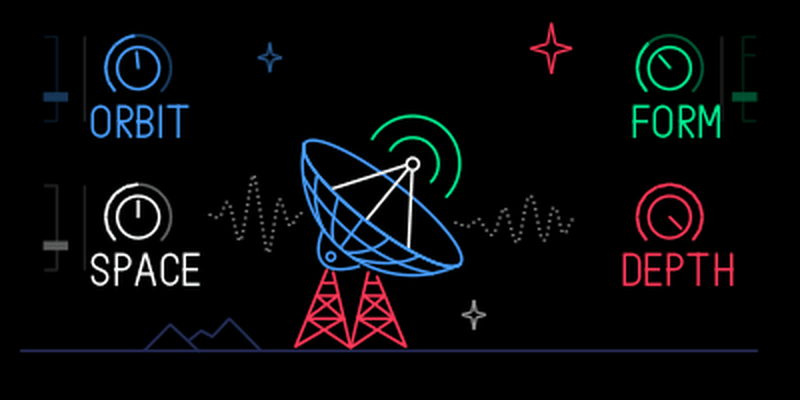
| Encoder | Main control | Push for page 2 |
|---|---|---|
| blue | Pitch range, 1–24 semitones | Dead zone around home, 0–10 degrees |
| green | Sine to reedy timbre | Tilt for full pitch range, 20–60 degrees |
| white | Shake vibrato amount | Vibrato rate, 3–8 Hz |
| orange | Volume response to tilt | No second control |
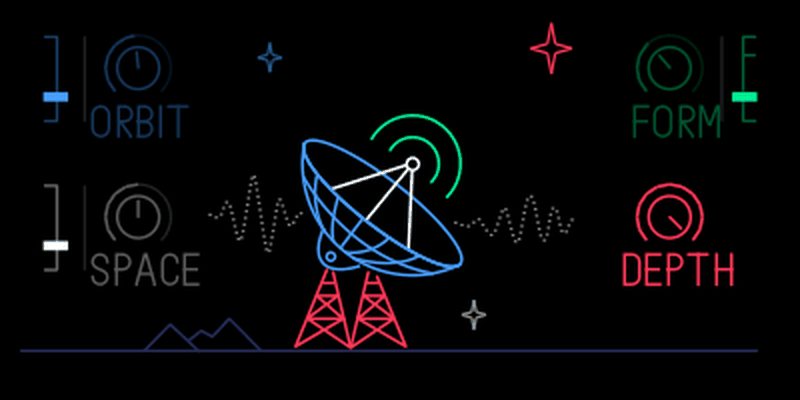
Shape amplitude on the normal T2 envelope page. Aether is an optional kennel synth file; this pack does not add Aether presets.
Iter lab
A lab screen for the stock Iter.
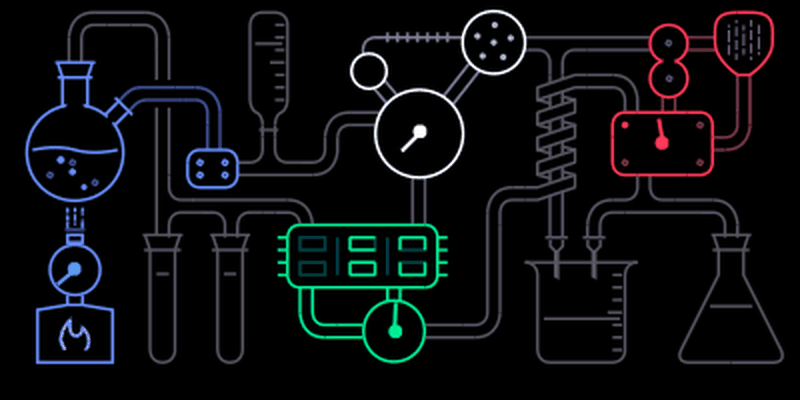
op1r gives the stock Iter synth a new animated lab screen. The sound is the stock Iter; only the screen is new. The four gauges follow the encoders, the bubbles speed up with blue, and the corner dots count the voices that are playing.
Load then Shift + pick iter
Mixtur
Each divider offers OFF and 1 to 24. The starting values are 1, 2, 3 and 5.
Load then Shift + pick mixtur
Undertones below every key.
A subharmonic organ after Oskar Sala's Mixtur-Trautonium. Four dividers play undertones of the key: the key is the top note, and the dividers add notes at 1/n of its frequency below it. Two formant filters turn the result into vowels. It sounds dark, vocal and slightly unearthly.
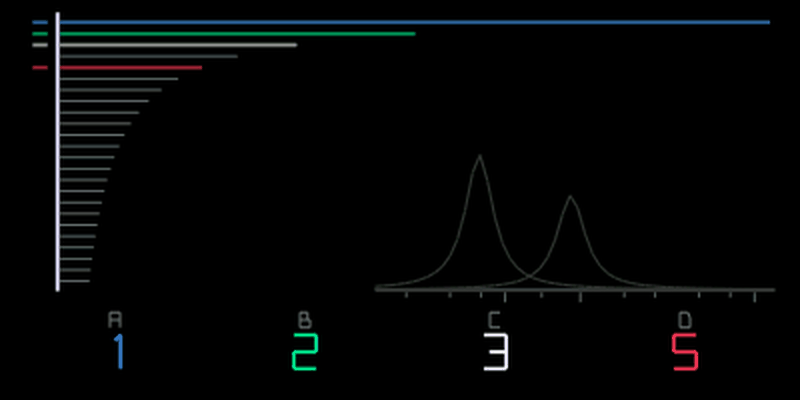
Undertone 1 to 24, or off
Push: Formant 1, 180 Hz to 4 kHz
Push: Formant 2, 500 Hz to 5.7 kHz
Push: Resonance
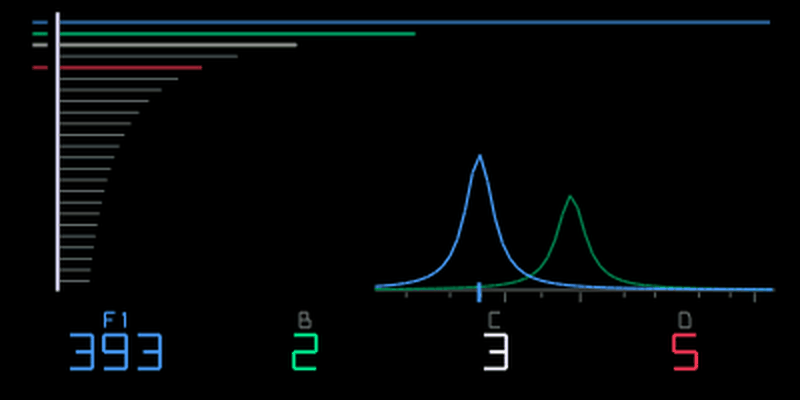
The default 1, 2, 3, 5 gives a minor chord under the key. Set the four dividers to different numbers: two dividers on the same number are muted. All four off is silence. Very low undertones fade out below about 40 Hz, so the bottom keys play fewer of them.
Mixtur is one of the six Musica Obscura modules, ultralazr's set of strange instruments from music history: two synths (Mixtur and Arc), two effects (Palme and In a room) and two sequencers (Oracle and Peal). The synths and effects have alternate encoder settings where their tables show them: push that encoder to switch and push again to return. The sequencers use the Shift controls described in their own sections. The author's README has the full story behind each one, and sound demos.
Arc
Duddell's singing arc from 1899.
William Duddell's singing arc from 1899: an arc lamp turned into an oscillator. Each voice goes from a clean sine to a reedy buzz to a screaming relaxation tone as you raise the current. Plasma noise makes the pitch wander. A second lamp can lock to the first, beat against it or go chaotic.
Load then Shift + pick arc
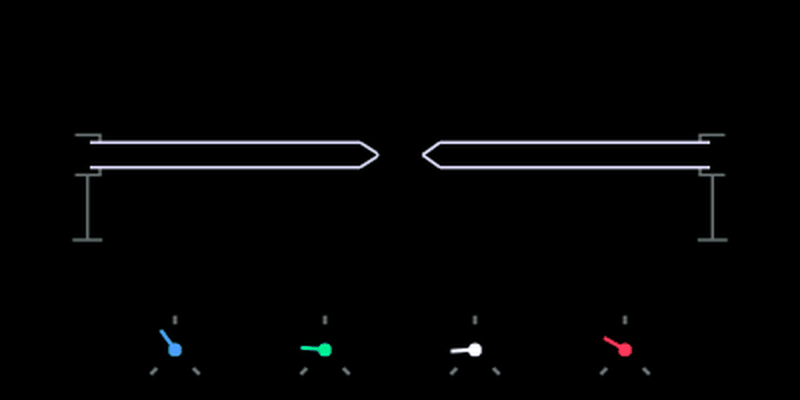
Sine, buzz, scream
Push: Second lamp ratio, 1/2 to 2, with stops at simple ratios
Even harmonics
Push: Coupling. 0 switches the second lamp off
Plasma noise and pitch wander
Push: Brightness
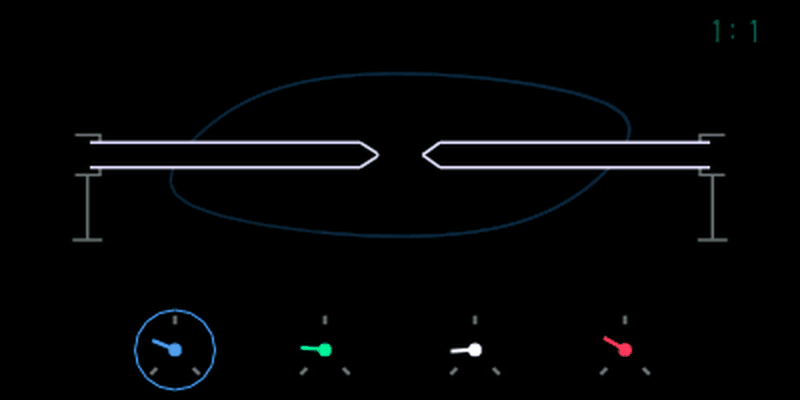
Strike and sputter: pitch dip and noise on each note, random re-strikes while held
Effects
Pick an effect with Shift + on a synth or the drums. They also work as master effects in the mixer, like stock. hundekraft's own effects come first, then op1r's and Musica Obscura's.
Washer
Chorus, ensemble and flanger.
A chorus that turns into a flanger. Three taps of one short delay line are swept by an LFO a third of a turn apart, which gives the wide ensemble sound of old string machines. Add foam and the taps move closer and feed back until it's a jet flanger.
LoadShift + pick washer on a synth or drum slot
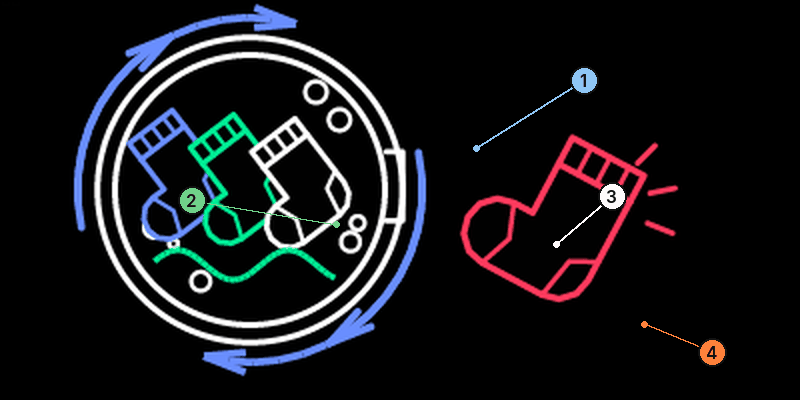
- 1Arrows around the door: speed on blue
- 2Water line: depth on green
- 3Foam in the tube: feedback on white
- 4The sock walks right as orange adds mix
LFO rate
Sweep depth
Chorus to flanger: shorter delay, more feedback
Adds the effect. At zero it's off
Try this
Each bar is a share of that encoder’s range. The encoders turn endlessly, so use it as a guide while you watch the screen. Where a preset is named, it’s in the workshop’s preset pack.
20%90%0%80%Slow, deep chorus. Preset: warm ensemble.
15%80%90%70%Slow jet flange. Preset: jet wash.
30%90%20%80%Thick and wobbly. Preset: swamp chorus.
Snowglobe
Shimmer reverb with a frozen heart.
A shimmer reverb whose tail climbs an octave at a time. At the top of orange the tail freezes into a pad that holds until you turn back.
LoadShift + pick snowglobe on a synth or drum slot
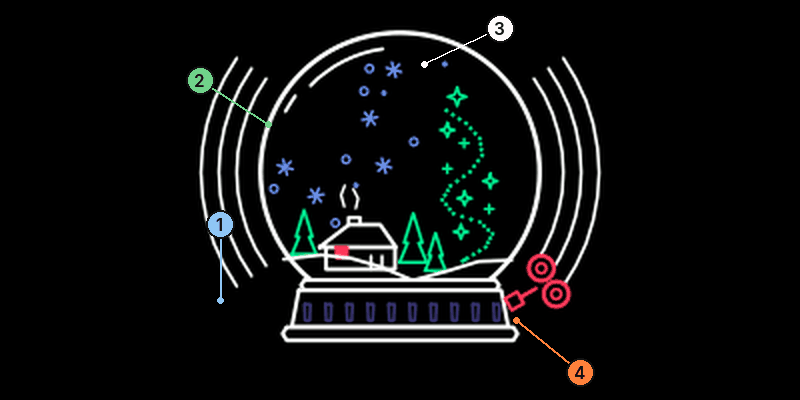
- 1Hourglass: decay on blue
- 2Sparkles spread with shimmer on green
- 3Halo: size on white
- 4Wind-up key: mix on orange. Keeps winding when frozen
Decay time
How much of the tail climbs an octave
Size of the space
Adds the reverb. The last few percent freeze the tail
Try this
Each bar is a share of that encoder’s range. The encoders turn endlessly, so use it as a guide while you watch the screen. Where a preset is named, it’s in the workshop’s preset pack.
90%70%80%70%Long, climbing tail. Preset: ice pad.
100%30%100%65%Huge, little shimmer. Preset: snowfield.
95%90%100%80%Shimmer all the way up. Preset: aurora.
To freeze a chord:
- Play and hold a chord with Snowglobe on, blue high.
- Turn orange all the way up. The screen frosts over.
- Let go of the keys. The frozen tail keeps ringing. Play over it.
- Turn orange back down to let it go.
STUTTER
The rings show Rate, Mode and Parts. Push blue to edit Parts; push again to return to Rate.
LoadShift + pick stutter on a synth or drum slot
A beat-locked stutter.
STUTTER cuts time into slices on the OP-1's beat. At each slice it rolls a dice: the slice plays through, or its first part is repeated until the slice ends. Repeats always land on the grid. It follows the OP-1's tempo, MIDI clock and the tape's speed, and runs at 120 BPM when there's no clock.
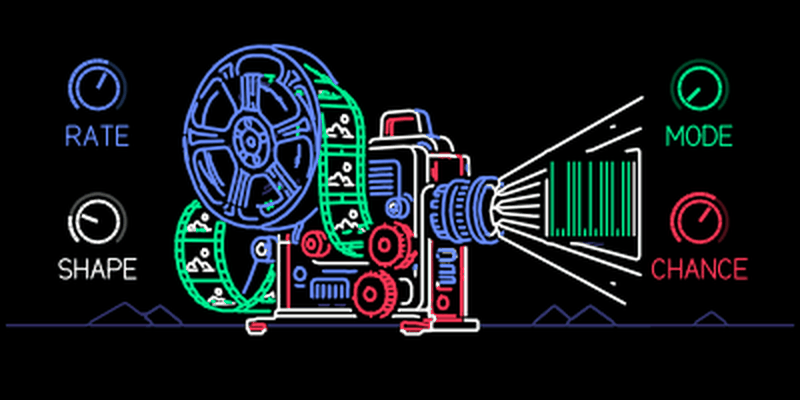
Slice length: 1/4, 1/8, 1/8 triplet, 1/16, 1/16 triplet, 1/32
Push: Parts: how many repeats a stuttered slice is cut into, 2 to 16
REPEAT, BRAKE (each repeat slower and lower, like a tape stop), REVERSE, or GATE (chops the live sound instead)
Fade on each repeat, 2 to 12 ms. In GATE: how long each burst stays open
How many slices stutter, from none to all
Push: freeze
Push orange to freeze: STUTTER keeps repeating the part that plays now, across slices, until you push again. Freeze isn't saved with the sound.
HAIL
Clouds of grains, after Mutable Instruments Beads.
HAIL records what comes in and plays many short, overlapping grains from it: pitched, reversed, smeared and sent into a reverb. It's a port of the granular mode of Mutable Instruments Beads, with a buffer of about 1.5 seconds and up to 16 grains.
LoadShift + pick hail on a synth or drum slot
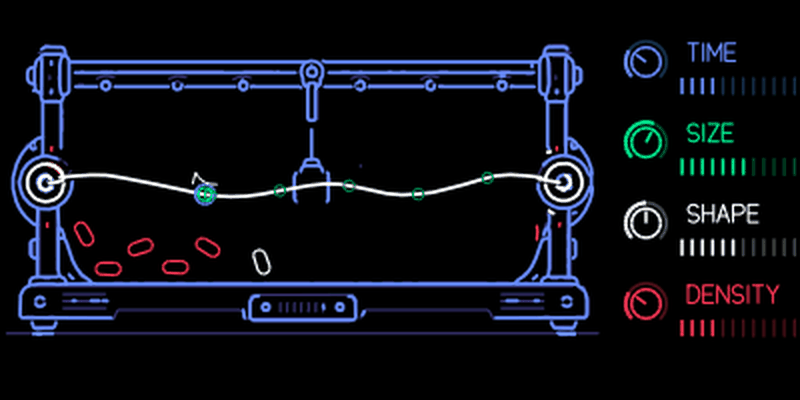
Where new grains start in the recording, from just now to 1.5 seconds back
Push: Pitch: -24 to +24 semitones, 0 in the middle
Grain length up to 4 seconds. Below a third the grains play backwards
Push: Mix: dry to wet
Grain envelope: square, decay, bell, reverse ramp
Push: Space: reverb in the first half, feedback added in the second
Left half: regular grains, faster to the left. Right half: random grains, more to the right. The middle starts none
Push: freeze
Push blue, green or white to switch that encoder's row independently to its secondary control; push it again to return. The same coloured dial now follows Pitch, Mix or Space, and the label changes with it. Pitch shows signed semitones (ST), including the centre dead band. Mix shows wet percentage. Space shows REV up to 75 % in its first half, then FDB from 0 to 100 % while reverb stays at 75 %.
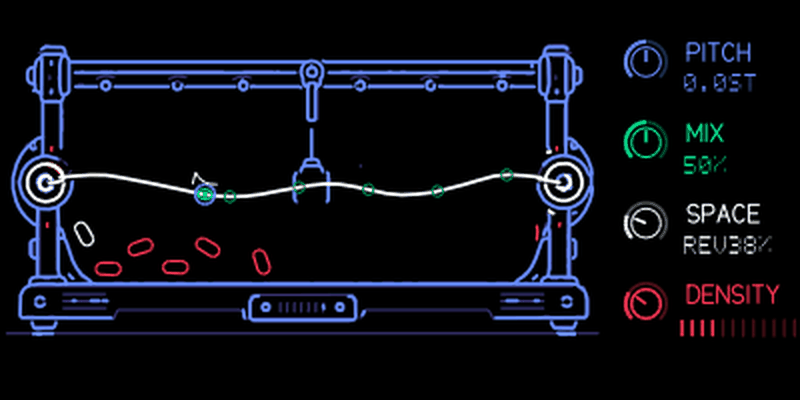
Push orange to freeze: nothing new is recorded and the grains keep playing what's in the buffer. The orange row shows FROZEN; turn still changes Density. Push again to unfreeze. Freeze isn't saved with the sound.
Crush
Bit depth, sample rate and drive, from Maiko #250.
Crush reduces the signal's bit depth and sample rate, then adds drive. Low bit depth makes a waveform's steps audible; a low sample rate adds aliasing. This independent kennel port uses Maiko's custom artwork with permission. It runs on synth, drum and master FX; the master keeps the two channels separate.
LoadShift + pick crush on a synth or drum slot
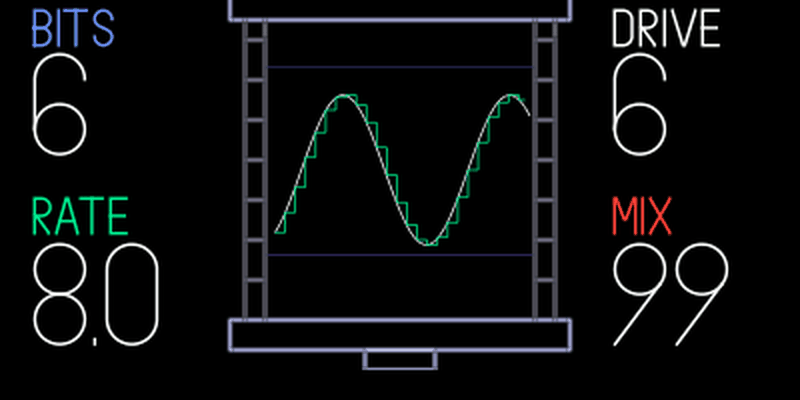
Quantization depth
Longer holds to full rate
Gain into soft clipping
Blend dry and crushed signal
The starting sound uses 6 bits, a rate readout of 8.0k, 6 dB of drive and full wet mix. The rate readout follows Maiko’s original scale. There is one page, with no extra push or Shift controls. Press to bypass or enable the effect.
Warble
Chorus, vibrato and tape wobble, from Maiko #250.
A modulated delay with two differently paced oscillators in its wobble. Half mix gives chorus; full mix gives vibrato. A slow rate and small depth give tape-like pitch movement. The cassette artwork comes from Maiko's #250 with permission; its hubs turn and the loose tape moves with the controls.
LoadShift + pick warble on a synth or drum slot
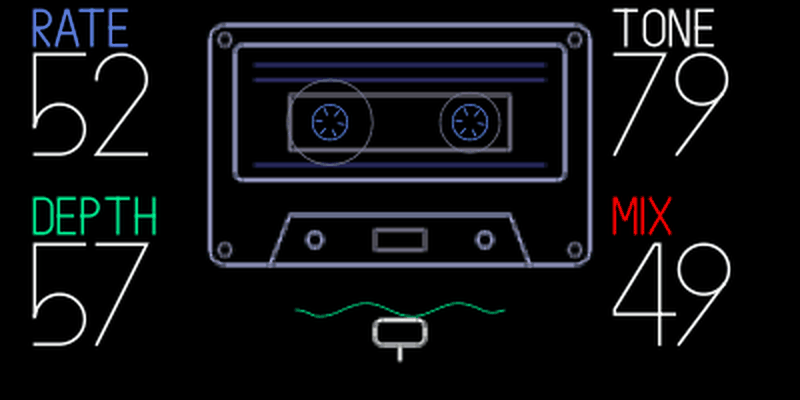
Slow to fast combined wobble
Shallow to wide delay modulation; rises more gently in the lower half
Dark to bright delayed signal
Blend dry and delayed signal
Readouts use 00–99 across each control's range. There is one page; pushes and Shift add no controls. Press to bypass or enable it; bypass dims the screen and shows FX OFF. Synth and drum processing is mono. On the master, independent left/right delays use right modulation phases a quarter-cycle ahead.
Plate
A plate reverb, from Maiko #250.
Plate diffuses the input into a reverb tail. Decay sets how long it rings; tone sets how bright it stays. The kennel port uses Maiko's custom artwork with permission and keeps separate state for the synth, drum and master positions. Synth and drum processing is mono; the master has an independent stereo tank.
LoadShift + pick plate on a synth or drum slot
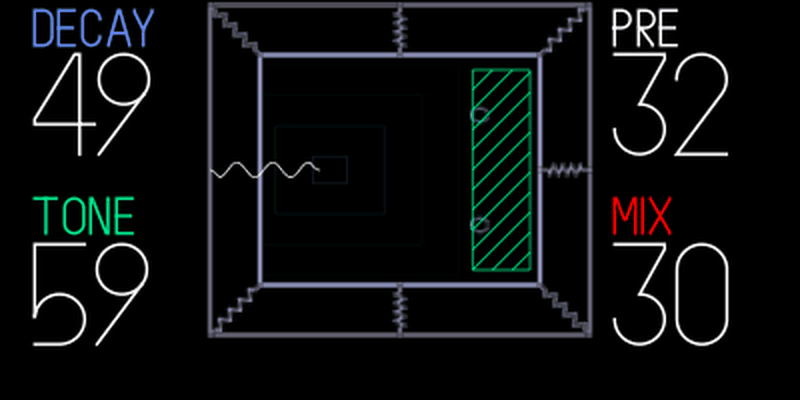
Short to long reverb tail
Dark to bright
Short to long delay before the reverb begins; rises more gently in the lower half
Blend dry sound and reverb
The screen shows normalized 00–99 values. The starting settings are about 50 decay, 60 tone, 33 pre-delay and 30 mix. There is one page, with no extra push or Shift controls. Press to bypass or enable it.
Father
A room that recedes into a long, moving tail.
Father blends short, stereo-spread early reflections with a denser, gently moving stereo tail. Distance adds up to 30 ms of predelay; Gate starts off so the tail can decay naturally. Turn Distance up to move the sound farther away and lengthen the decay. The cap-and-glasses figure recedes as Distance rises. The ceiling, floor and cassette stay still. The small green person moves with Gate, and green door bars close as the reverb tail is gated.
LoadShift + pick father on a synth or drum slot
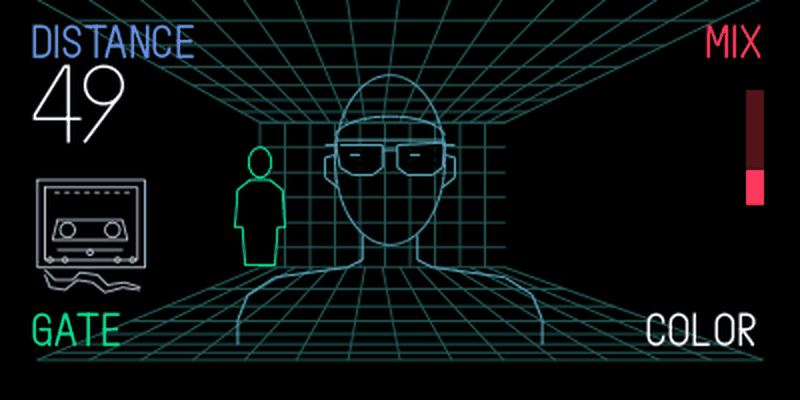
More delay before the reflections and a longer tail
Zero is off. Turn up to shorten the hold after the dry sound ends, then fade the reverb smoothly
Dark, damped reflections to a brighter tail
Blend dry sound and reverb
The starting settings are about 50 for Distance, Gate off, 54 for Color and 30 for Mix. If Father is already loaded, turn green to zero to hear the ungated tail. Only Distance has a large number; Mix uses the red bar on the right. The sound controls work even where the picture stays still. There is one page, with no extra push or Shift controls. Press to bypass or enable it. FX OFF means it is bypassed.
Father is mono on synth and drum, and stereo as a master effect. Gate holds the reverb after you stop playing, then fades it out. New notes restart the hold. Turning Gate on keeps the current tail; turning it off lets the reverb ring freely. Gate leaves the dry sound untouched. Color changes the brightness of the reflections and tail.
Father’s concept and room illustration are inspired by xylograph’s Father demonstration. See Credits.
Tape (echo)
Vintage tape echo.
A tape echo with a moving tape loop on screen. The animation is locked to the audio: a mark takes exactly the delay time to travel from the record head to the play head.
LoadShift + pick tape on a synth or drum slot
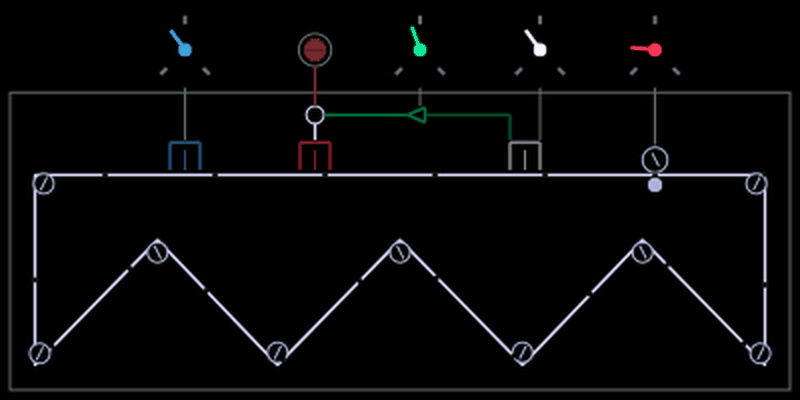
Age. Darker, more saturated repeats
Feedback. Above 100 % it self-oscillates, safely
Time. Glides like real tape speed, so the pitch bends while you turn
Clouds
Granular textures, after Mutable Instruments Clouds.
A port of Mutable Instruments Clouds in granular mode: up to 24 grains over a buffer of about 2.7 seconds. Push an encoder to switch it to its page-2 value.
LoadShift + pick clouds on a synth or drum slot
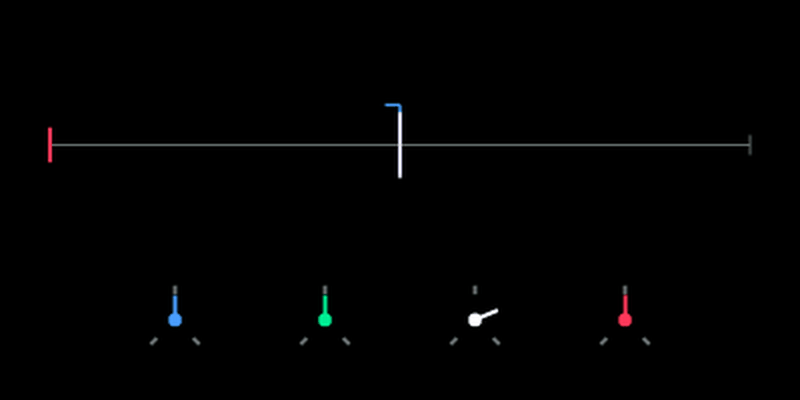
Position in the buffer
Push: Pitch, -24 to +24 semitones
Grain size
Push: Dry/wet
Density. Below the middle grains are regular, above random
Push: Reverb
Texture (grain window). Above 75 % adds diffusion
Push: Freeze on or off
Reverb
Reverb, after Mutable Instruments Elements.
A port of the Elements reverb from Mutable Instruments, drawn as Kali with art by DAN76. Her arms count the decay, the flames show the tone. The skulls and flames change brightness continuously.
LoadShift + pick reverb on a synth or drum slot
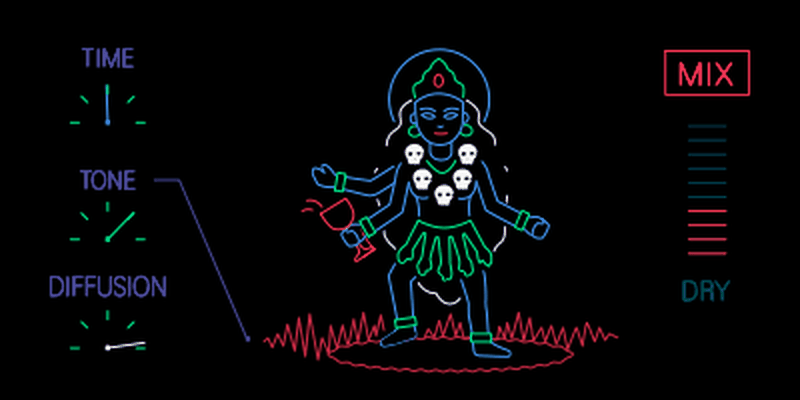
Time, up to near endless
Tone, dark to bright
Mix, dry to wet
Palme
Twelve sympathetic strings and a gong.
The palm-shaped string loudspeaker of the Ondes Martenot. Twelve strings, tuned chromatically from a root, ring in sympathy with what you play. Page 2 morphs the soundboard into a gong.
LoadShift + pick palme on a synth or drum slot
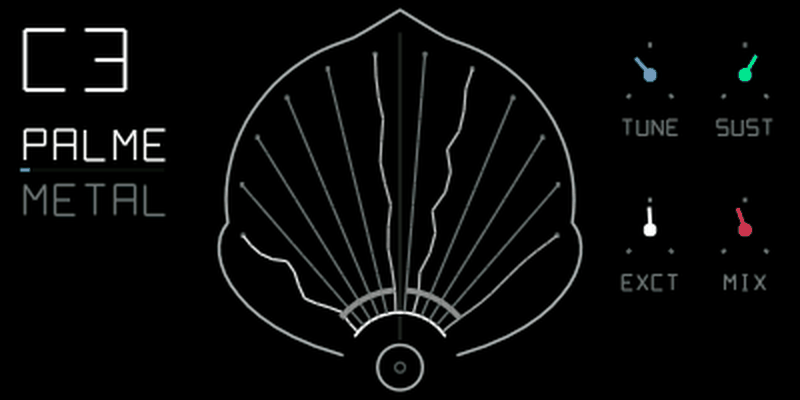
Root note of the 12 strings, C2 to B4
Push: Métallique: palm leaf to gong
Sustain, 0.25 s to 30 s
Push: Damping: dark felt to bright wire
How hard the input drives the strings
Push: Spread: detune up to ±35 cents
Dry, both, strings only
Push: latch
To make an endless drone:
- Play a chord through Palme.
- Push orange. The felt damper swings open.
- Stop playing. After about 0.3 s the strings hold their notes forever while the overtones fade.
- Play more to add notes. Push orange again to let everything ring out.
Latch is not saved with the sound.
In a room
Choose one of four rooms with Shape. Push blue to set Loop to a free length or one of six tempo-synced lengths.
LoadShift + pick in a room on a synth or drum slot
Every pass of the loop goes through a room.
After Alvin Lucier's "I am sitting in a room" (1969). You record a phrase, and on every pass the loop plays through a model of a room and is recorded again. The room's resonances pile up, and after enough passes speech melts into a chord. The counter shows the generation.
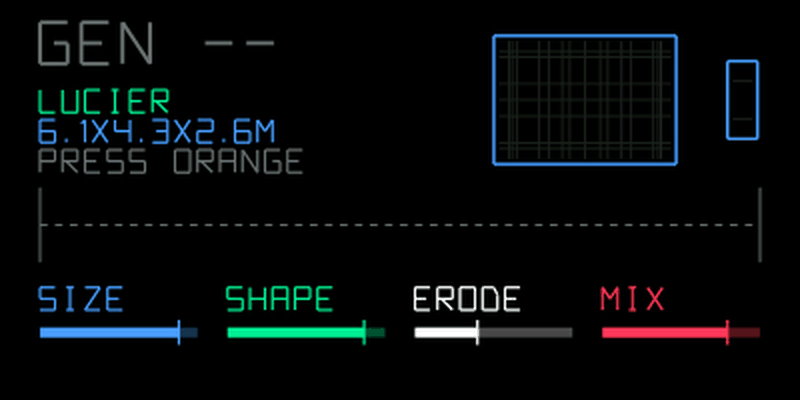
Longest wall, 0.8 m to 8 m
Push: Loop: free 0.5 s to 3.9 s, or synced 1/16 to 2 bars
CUBE, GOLDEN, BOLT or LUCIER
Push: Absorb: treble lost on each pass
How hard each pass is filtered
Push: Crossfade: 0–93 ms across a captured loop boundary
Mix, dry to the loop
Push: record (free) or arm (synced)
Gain changes ramp across generation boundaries; synced captures avoid repeating the last sample. Crossfade blends a pre-roll into the loop end. Set it before recording; zero keeps the original boundary.
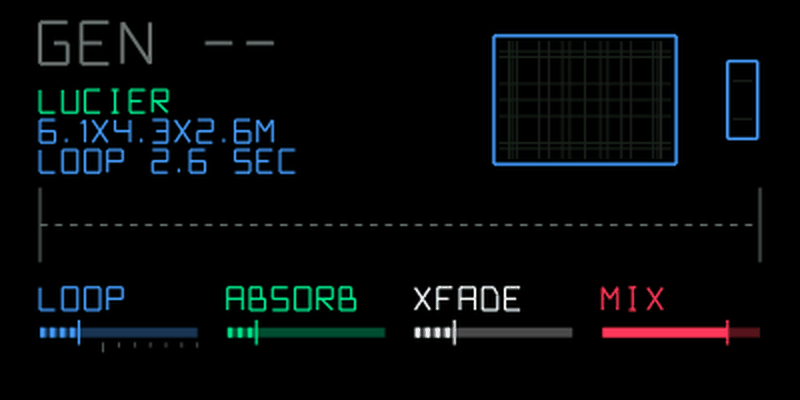
- Put In a room on the master effect for best results.
- Push blue to switch it to LOOP and set the loop length first. It's read when a capture starts. Push blue again to go back.
- Push orange to capture. In synced mode the capture waits for the next matching grid point and lasts exactly the loop length.
- Listen to the generations stack up. Push orange again to capture something new.
Play and sequence
Tools that change what your keys play, plus sequencers, drum+ and an LFO that play along. Chord and Scale work with hand-played notes and sequencers. They keep their own pages: Chord is on Shift + , then ; Scale is on the synth's page while holding Shift. The sequencer browser stays under Shift + . There is no combined Players page in this version.
Randomiser
Keep the instrument. Find another sound inside it.
On a synth page, hold Shift and press to make a new variation of the current sound. The engine stays the same; its knobs, envelope, effect and LFO can change. Randomiser chooses from the effects and LFOs available on this OP-1. MIDI LFO is excluded.

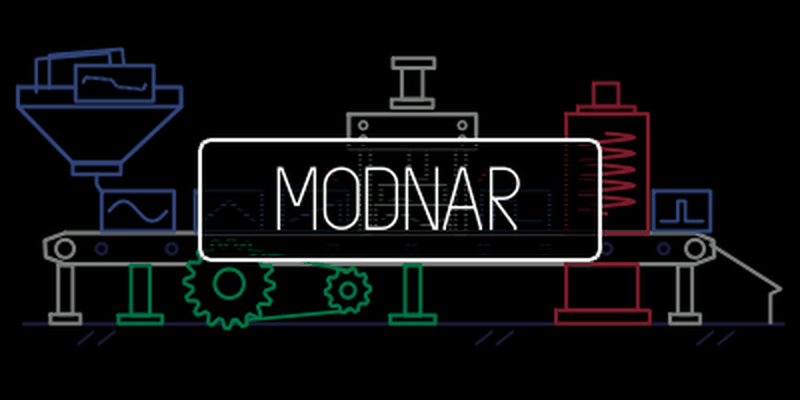
- Shift + : step forward through existing variations, or generate a new one at the newest step. The panel says RANDOM.
- Shift + : step back. The panel says MODNAR. At the original sound, another press does nothing.
Each of the eight synth slots keeps its original sound and six most recent variations in memory. Turning knobs before stepping preserves those edits in that history entry. Changing the engine starts a new history for the slot. History is cleared on restart; the current sound uses the normal slot saving, and you can save a favourite with the usual held sound key.
Changing a variation stops any held notes. The shortcuts are inactive in drum/tape mode and while the sampler or text editor is open. Randomising a sampler changes settings, not its recorded audio.
Random results can be bright, loud or expensive to play: try fewer notes or a lighter effect if audio peaks. Randomiser does not guarantee that a heavy engine/effect/LFO combination fits the audio budget. Leaving Randomiser out removes its shortcuts, not sounds already made with it.
Chord mode
Chord mode turns every key into a chord. It knows about scales and progressions, so you can play a whole song with one finger. It works with every synth, including the stock ones, and with every sequencer. It's off until you switch it on.
Open the chord page
- Hold Shift and press . You get the clock or an Oblique Strategies card. Either one works.
- Press . The chord page opens.
- Push orange to switch chords on. Push it again to switch them off.
- Press again to close the page. Chord mode stays on until you switch it off.
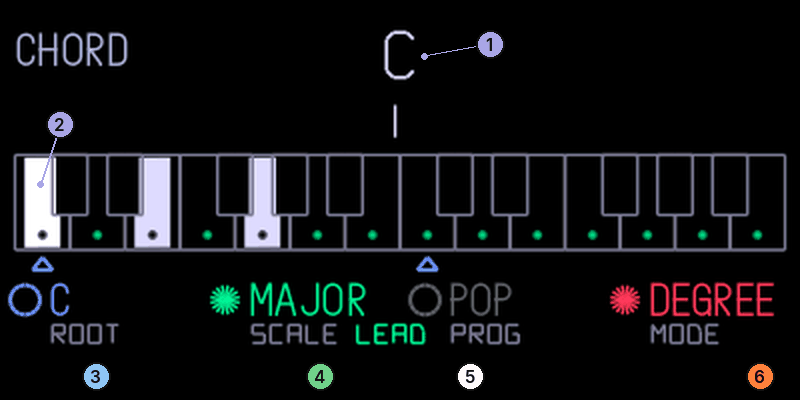
- 1Chord name and Roman numeral
- 2The chord on the keyboard. The bass is white, green dots mark scale notes
- 3Root on blue
- 4Scale on green. Below it: what black keys play
- 5Progression on white
- 6Degree or step mode on orange
The encoders
| Encoder | Turn | Push | Shift + push |
|---|---|---|---|
| blue | Root note | Chord colour: triad, sus4, sus2, 7th, add9 | |
| green | Scale (13 to choose from) | What out-of-scale keys play: LEAD, PASS or BORR | Voice leading on or off |
| white | Progression (16, plus your own "mine") | Degree mode: record a progression (push again to stop). Step mode: restart it | Degree mode: clear "mine" |
| orange | Degree mode or step mode | Chords on or off |
The scales are major, minor, dorian, mixolydian, lydian, phrygian, locrian, harmonic minor, melodic minor, phrygian dominant, pentatonic, minor pentatonic and blues.
Degree mode
Each key plays the chord that belongs to it in the chosen scale. In C major, C plays C major, D plays D minor, G plays G major, and so on. The key you press is always the bass note, so higher keys give higher chords, and the octave keys work as usual.
- Hold Shift while you press a key to play a dominant 7th on it. On the fourth degree Shift swaps minor and major (iv and IV), and on the raised fourth it plays a half-diminished chord.
- Keys outside the scale play what green push chose. LEAD plays a dominant 7th that leads into the next scale chord, PASS a diminished 7th passing chord, and BORR a borrowed chord (for some keys a slash chord, such as D/F# in major).
- blue push adds colour to the scale's triads in degree mode: sus4, sus2, the scale's own 7th, or add9. Shift chords, LEAD and PASS chords and step mode stay as they are.
Step mode
Turn orange to STEP. Now every key press plays the next chord of the progression on white. The key you press only sets the register. Hold Shift and press a key to step back.
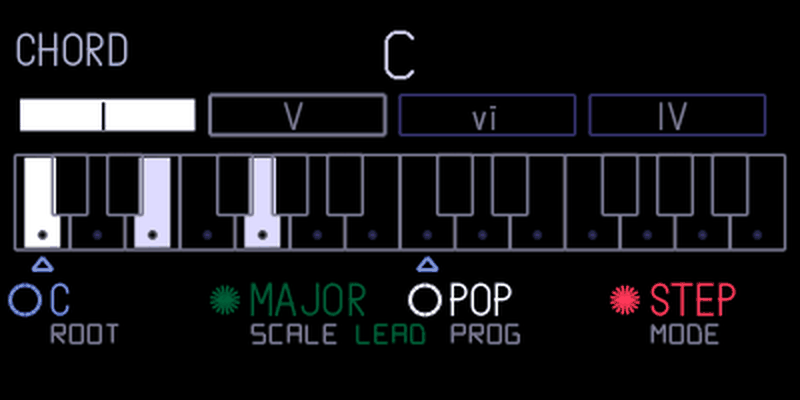
The progressions are pop, 50s, jazz, andalus, blues, canon, sad, royal, rock, circle, turn, epic, creep, soul, min251 and dreamy.
Record your own progression
- In degree mode, push white. The page shows "rec".
- Play up to 16 chords. Colours and Shift chords are recorded too.
- Push white again. Your progression is saved as "mine".
- Turn orange to STEP and white to "mine" to play it back one press at a time.
In degree mode, Shift + push white clears "mine". It follows the root, so you can transpose it with blue.
Good to know
- Chords play only in the POLY play mode. In mono, legato and unison each key plays a single note.
- A triad uses three of the six voices and a 7th uses four. Holding several chords steals voices from each other.
- MIDI out sends only the key you pressed, not the chord.
- With Maiko's scale mode on, keys snap to that scale first, so out-of-scale chords can't be reached. Switch scale mode off when you use chord mode.
- Settings and your recorded progression are saved and survive a restart.
Scale mode
Locks the keyboard to a scale, so wrong notes stop sounding.
- Press , then .
- Hold Shift. The scale view appears.
- Turn white to choose the key and orange to choose the scale. A message confirms it, for example "scale c major".
- Let go of Shift and play.
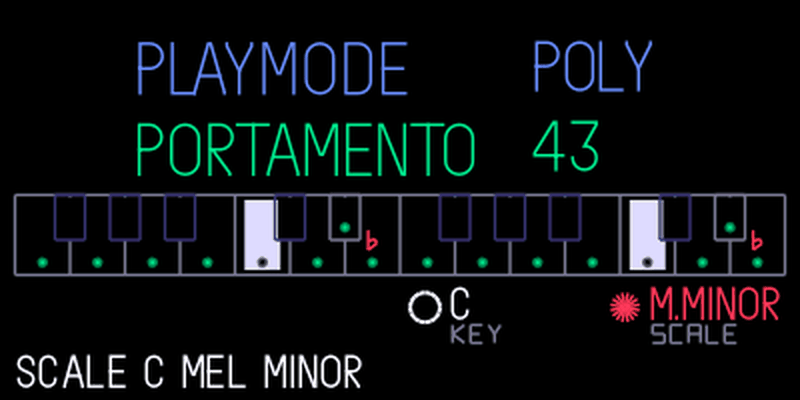
Each white key plays the note of its letter in the scale, black keys play only if they're in it. It works on everything that reaches the synth: the keyboard, MIDI in and the sequencers. The scales are major, minor, dorian, phrygian, lydian, mixolydian, locrian, harmonic minor and melodic minor. Turn orange to OFF to get the full keyboard back. Your setting is kept after a restart.
blue and green keep their stock jobs on the scale page. The Shift shortcuts of the sequencers keep working with scale mode on. Out-of-scale chords can't be reached while it's on.
MIDI sequencer
A sequencer for notes and MIDI CCs on four tracks that play along with the tape. Start recording with the first note or a count-in, then quantize the timing if needed. Each track takes notes from the keyboard, from the OP-1's sequencers or from a USB MIDI channel, and plays them to the synth, into a sequencer or out over USB MIDI.
Switch it on
The MIDI sequencer is off until you switch it on. While it's off, SEQ and TAPE work as usual.
- Hold Shift and press , then press . The settings page opens.
- Turn green right: MIDI SEQ shows ON. Turn it left to switch off.
You can open it from Settings or any other page: hold , then press . Press on its own to return to the normal tape view.
The setting is kept after a restart.
Open the sequencer
Hold and press . The sequencer replaces the tape screen. Press again to go back to the tape, or another mode key to go to that mode. The tracks keep playing with the tape while the view is closed.
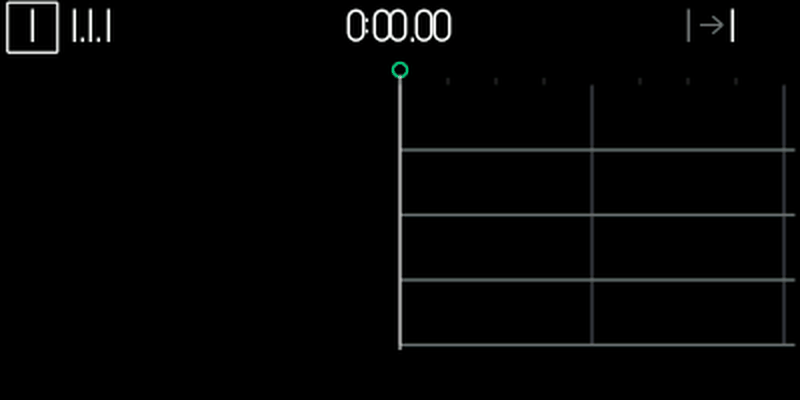
On top you see the selected track, the position in bars, beats and sixteenths, the time, and the track's input and output, for example I → M1.
| Keys in the view | Does |
|---|---|
| to | Select a track |
| Shift + to | Mute or unmute that track |
| Hold | While playing: record while held. From stop: the first note on the chosen input starts PLAY and latches MIDI recording |
| Shift + | While playing: latch recording on/off. From stop: arm; the first note on the chosen input starts PLAY and recording.  cancels or ends it cancels or ends it |
| Hold + | Count in from stop, then PLAY and latched MIDI recording. Let go of REC during the count; STOP or the combo again cancels |
| Shift + turn blue | Quantize grid: off, 1/4, 1/8, 1/16, 1/32, 1/8T, 1/16T |
| Shift + push blue | Quantize notes in the selected time range; with no selection, the 1.5-second page at the playhead |
| First press: selection start at the playhead. Second press: selection end |
| Cut the selection from the track. With no selection, the 1.5-second stretch the playhead is in. The playhead then jumps to the first note it cut |
| Shift + | The same, from all four tracks |
| Paste at the playhead |
| Turn white | Pick the track's output |
| Push white | Switch white between output and input |
| Push orange, Shift + turn orange | Tape markers, as on the tape screen |
Inputs and outputs
| Setting | As input, records | As output, plays |
|---|---|---|
| I | Notes you play on the keyboard | Notes to the synth; CCs to its knobs (see below) |
| S | Notes the OP-1's sequencers play | Notes into the stock sequencer, as key presses |
| M1 to M16 | Notes and CCs on that USB MIDI channel | Notes and CCs out over USB MIDI on that channel |
Inputs I and S also record CCs that come in on the OP-1's own MIDI channel.
Record a track
- Pick a track with to . Push white and turn it to pick the input.
- From stop, hold or press Shift + to arm. The first note on the chosen input starts playback and MIDI recording. You can release REC after the first note; ends it. A note from another input cannot start it.
- For a count-in, hold and press . You can release REC during the clicks. After the count, PLAY and latched MIDI recording begin. This needs the Count-in plugin. While the tape already plays, held REC records while held, or Shift + REC toggles latched recording.
- The playhead turns red while it records. New notes are added to what's there: nothing is erased.
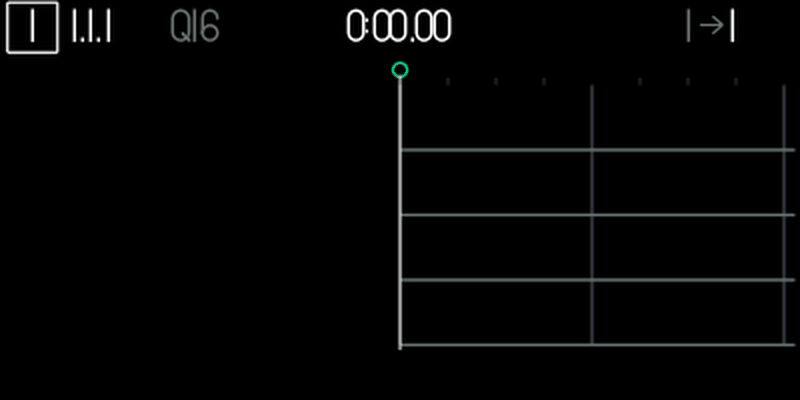
The quantize grid is saved on the OP-1. A grid label such as Q16 appears beside the position. On finishing a take, up to its first 256 notes snap to the grid; Shift + blue push processes up to 256 notes in the selected track/range. Note lengths and CC timing are retained. Finish recording before quantizing a selection. Leaving the view cancels a pending armed start or count-in.
CC automation
A computer, a controller or a MIDI track can turn the current synth's knobs with CCs on the OP-1's MIDI channel. It works like turning the knob and is saved in the sound.
| CC | Controls |
|---|---|
| 53 to 56 | Engine knobs blue to orange |
| 57 to 60 | Envelope: attack, decay, sustain, release |
| 72 to 75 | Effect knobs blue to orange |
| 76 to 79 | LFO knobs blue to orange |
Values are absolute: 0 to 127 covers the knob's whole range. CCs the sequencer recorded play back into the same knobs.
drum+
drum+ is a second drum instrument on top of a sampled drum kit. It adds per-pad sound design: pitch envelope, retrigger, drive, choke groups, an envelope and a filter for every pad. Pads you haven't touched sound like stock.
Switch a kit to drum+
- Press and load a sampled drum kit.
- Hold Shift and press . The drum type list opens.
- Turn blue to DRUM+ and press . The kit stays the same.
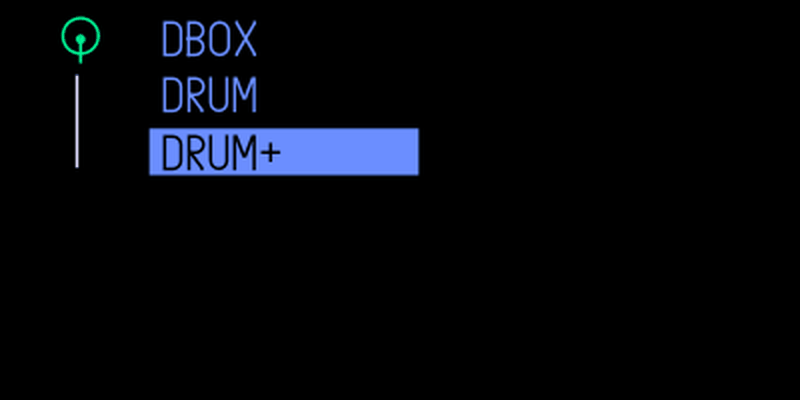
Load another kit or a DBOX to return to stock drums. A stock OP-1 loads a drum+ kit as a normal kit.
Page T1: play
Press . Play a pad to select it. Hold Shift for the second row.
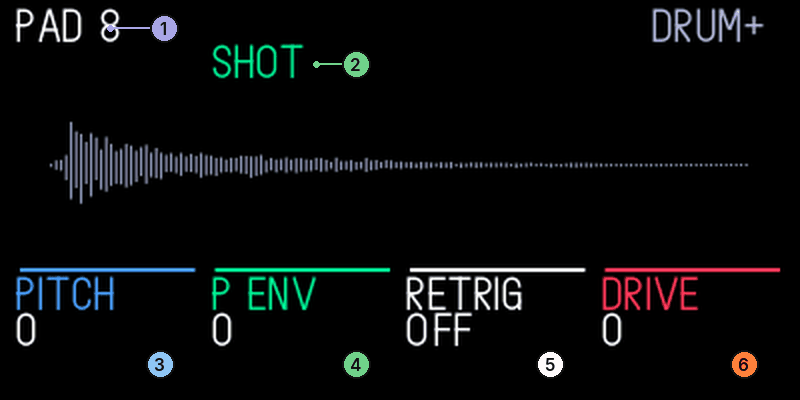
- 1The pad you are editing. Play a pad to select it
- 2Play mode, changed by pushing green
- 3Pitch on blue
- 4Pitch envelope on green
- 5Retrigger on white
- 6Drive on orange
| Encoder | Turn | Shift + turn | Push |
|---|---|---|---|
| blue | Pitch | Fine tune, ±50 cents | Reverse |
| green | Pitch envelope: starts up to ±48 semitones off and glides to the note | Glide time | Play mode: gate, one-shot, loop |
| white | Retrigger: 2 to 8 hits | Retrigger rate, 1/8 to 1/64, synced | Choke group: none or 1 to 4 |
| orange | Drive | Volume | Mono: a new hit fades the last one |
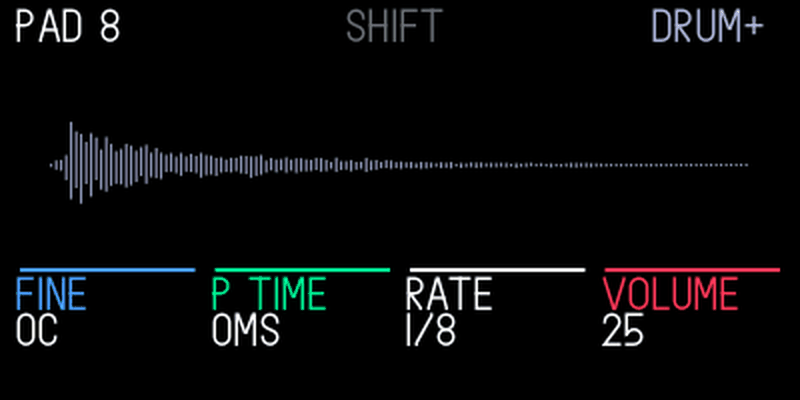
Page T2: envelope and tone
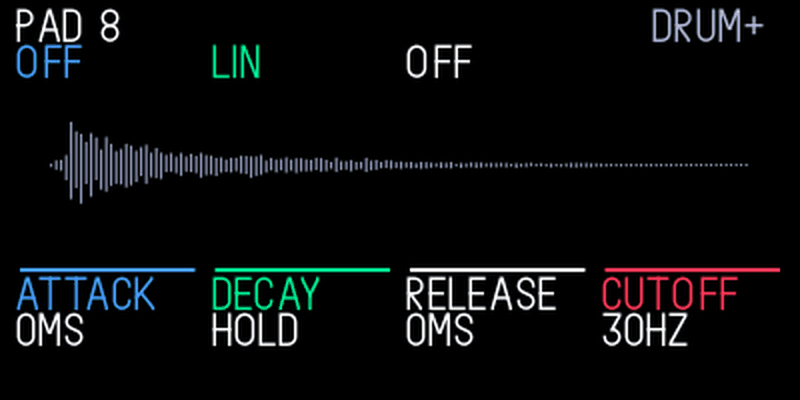
| Encoder | Turn | Shift + turn | Push |
|---|---|---|---|
| blue | Attack | Velocity to pitch, ±24 semitones | Envelope on or off |
| green | Decay | Humanize: random start delay and level | Linear or exponential |
| white | Release | Resonance | Filter: off, LP, HP, BP |
| orange | Cutoff, 30 Hz to 16 kHz | Velocity to cutoff | Velocity to start: softer hits start later |
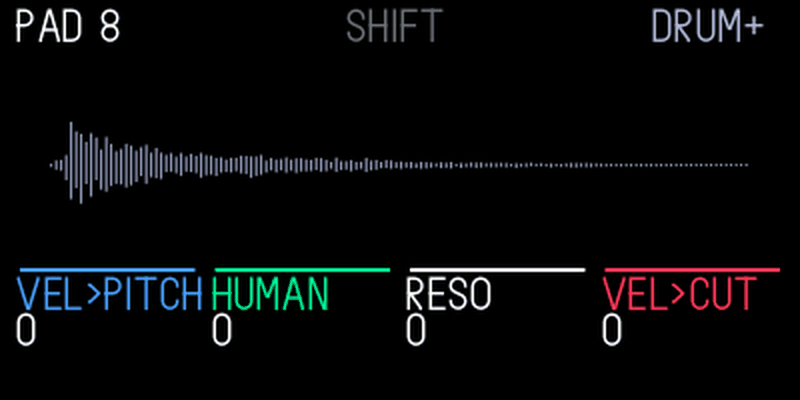
Turning attack, decay or release switches the envelope on. Turning cutoff or resonance switches the filter to LP. Times go up to about 4.6 s.
Euclid
Euclid and Dots are op1r's sequencers. Pick one with Shift + . Synth and drums each have their own sequencer, and both run at the OP-1's tempo and send MIDI notes. The keys every sequencer shares are at the end of this section.
Six rings, each playing one note in a Euclidean rhythm: a number of hits spread as evenly as possible over a number of steps. Stack a few and you get rhythms that sound far more worked out than they are.
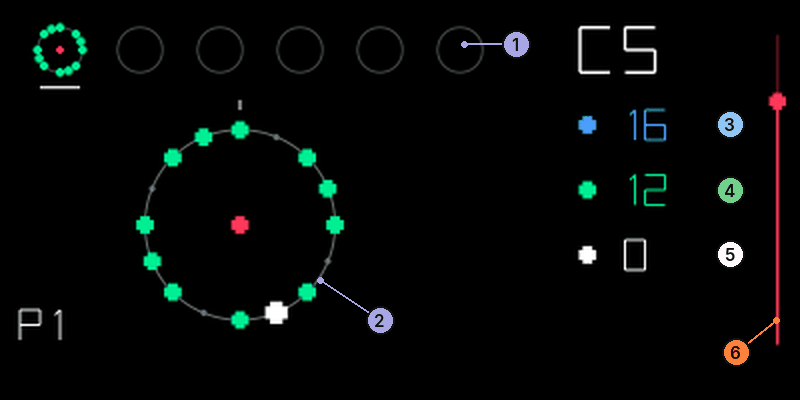
- 1Six slots. Shift + white selects one
- 2The pattern. The white square is the playhead, the red dot means running
- 3Steps on blue
- 4Hits on green
- 5Rotation on white
- 6Level bar. Turn orange right to start, left to stop
To build a pattern:
- Hold Shift and turn white to pick a slot (the rings at the top).
- Press a key to give the slot its note.
- Turn blue for steps and green for hits. Turn white to rotate the pattern.
- Turn orange right to start the slot. Turn it left to stop.
- Pick the next slot and repeat.
| Encoder | Turn | Push for page 2 |
|---|---|---|
| blue | Steps, 1 to 16 | Rate: 1/4 to 1/32, with triplets |
| green | Hits, 0 to the number of steps | Gate, 10 % to 100 % |
| white | Rotation. Shift + turn: select slot | Octave, -2 to +2 |
| orange | Right: start. Left: stop. Shift: all slots | Level (velocity) |
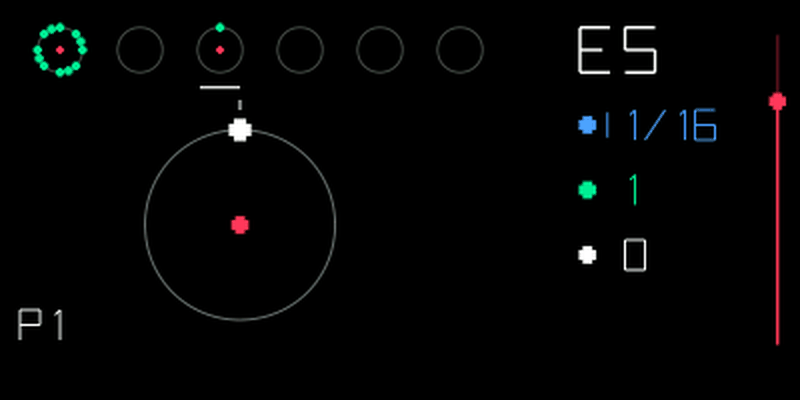
A slot without a note can be edited but won't start. Slots come back stopped after a restart.
Keys for every sequencer
Some keys work from any screen while a sequencer runs:
| Keys | Does |
|---|---|
| Shift + C# | Start all slots, or stop them all if any are playing. Hold too to start tape recording on the first step |
| Shift + G, A, B, C, D, E (the last six white keys) | Mute slot 1 to 6 |
| Shift + D# | Mute all |
| Shift + F, G, A, B | Pattern 1 to 4 |
, and copy, cut and paste the selected slot. With Shift they copy, cut and paste the whole pattern.
Dots
Six slots of up to 64 steps each, all playing at once at 1/16. Every step can have a note, a level, ratchets, a chance, a condition, a nudge and up to four effect locks.
Dots is where people get stuck, so here's the whole loop. The keys every sequencer shares work here too.
Make Dots play
- Hold Shift and turn white to pick a slot.
- Press . "REC" lights up top right.
- Play notes. Each key puts a step at the cursor and moves the cursor on. Turn blue to move the cursor yourself.
- Press again to stop recording. This step matters: while recording, orange sets the step level instead of starting the slot.
- Turn orange right. The slot starts on the next step. Turn it left to stop.
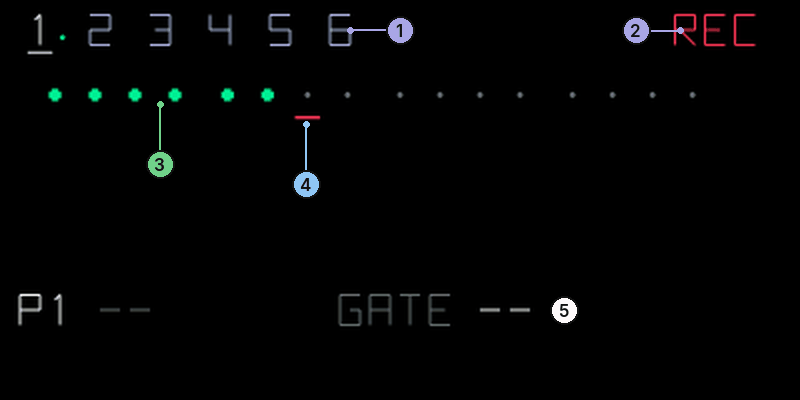
- 1Slots 1 to 6. The underlined one is selected
- 2REC: recording is on
- 3Steps with notes
- 4The cursor, moved by blue
- 5The step parameter on white
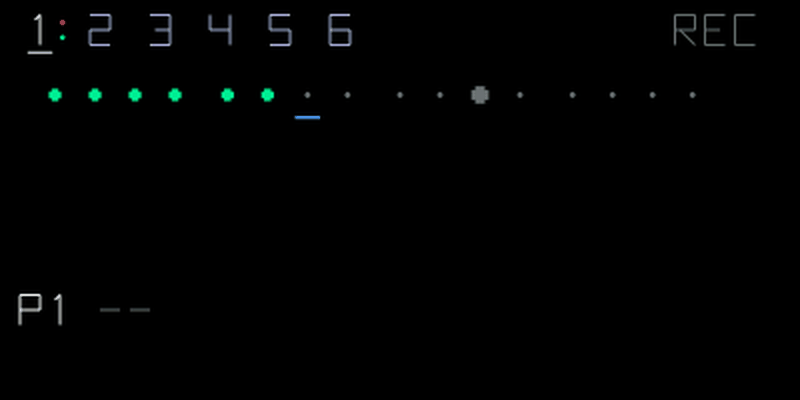
Recording controls
While is on:
| Control | Does |
|---|---|
| blue | Move the cursor. Shift + turn erases while moving |
| green | Slot length, 1 to 64. Shift + turn right fills up to the next row of 16, copying the row above; left goes back a row |
| white | Parameter value. Push to switch between choosing the parameter and setting its value |
| orange | Level of the step under the cursor, 1 to 127 |
| Push orange | Switch between step recording (REC) and live recording (LIVE) |
| Push blue | On an empty step: make a lock-only step. Push again to remove it |
In LIVE, keys you play while the slot runs are recorded at the playhead, rounded to the nearest step. Hold a key longer for a longer gate.
Step parameters
Push white, turn it to choose a parameter, push again and turn to set it.
| Parameter | Does | Range |
|---|---|---|
| GATE | Note length | 5 % to 100 %, or TIE |
| RATCH | Repeats within the step | 1 to 8 |
| CHANCE | Probability the step plays | 0 % to 100 % |
| COND | Plays only on loop a of b | ALL, 1:2, 2:2, 1:3 ... 4:4 |
| NUDGE | Shift the step in time | -12 to +12 ticks (of 96 per beat) |
| RAMP | Ratchet level ramp | OFF, UP, DN |
| FX1 to FX4 | Effect lock for the effect's blue to orange encoder | Off, or 0 % to 100 % |
An effect lock moves that effect encoder to the stored value when the step plays, and back after the gate. A lock-only step (hollow square) changes the effect without playing a note: a quick way to throw a single delay or a filter sweep into a pattern.
C64 arpeggiator
An editable pitch table with per-step dwell time.
Use to switch the arpeggiator on or off, then hold a note to set the root of its repeating table of relative pitches. Turn orange right to hold the notes after you let go, like the stock arpeggio, and left to release them. A step can last several base steps, so a short table can produce uneven rhythms. Choose C64arp in the sequencer browser: hold Shift and press , turn blue to c64arp, then press to load it. This is an independent kennel sequencer, selected separately in the workshop.
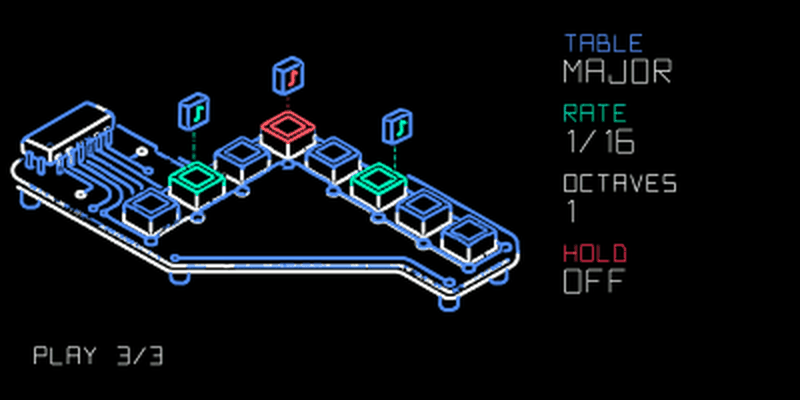
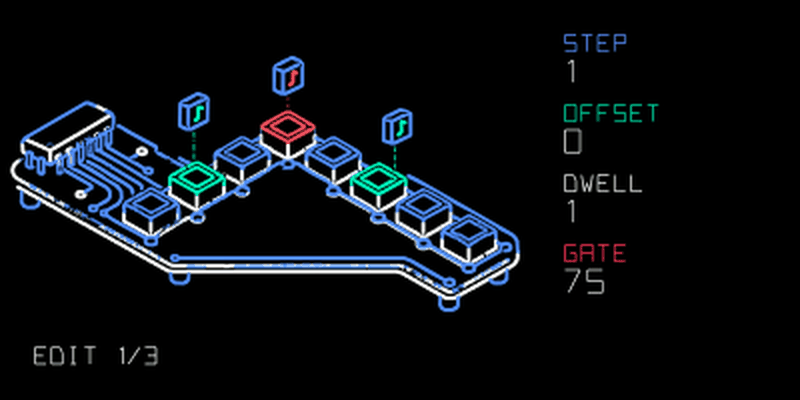
| Encoder | Main page | Edit page (push any encoder) |
|---|---|---|
| blue | Preset table: major, minor, major 7, minor 7, fifth, sus4, major up/down or minor up/down. Turn left past major (or left from a custom table) for OFF | Choose step 1–length |
| green | Base rate: 1/4, 1/8, 1/8T, 1/16, 1/16T, 1/32, 1/32T or 1/64 | Relative pitch, −24 to +24 semitones |
| white | Octaves, 1–4 | Dwell, 1–8 base steps |
| orange | Hold on (right) or off (left) | Gate, 10–100% |
Push any encoder again to return to the main page. Shift + blue sets table length, 1–16; Shift + orange sets Gate, 10–100%. Editing a preset marks the table as custom.
With the table OFF, the arpeggiator plays only the keys you hold, lowest to highest, with no added notes. Hold a chord to arpeggiate it. Rate, Octaves and Gate still apply. Turn blue right to get your table back unchanged. Editing a row also switches the table back on.
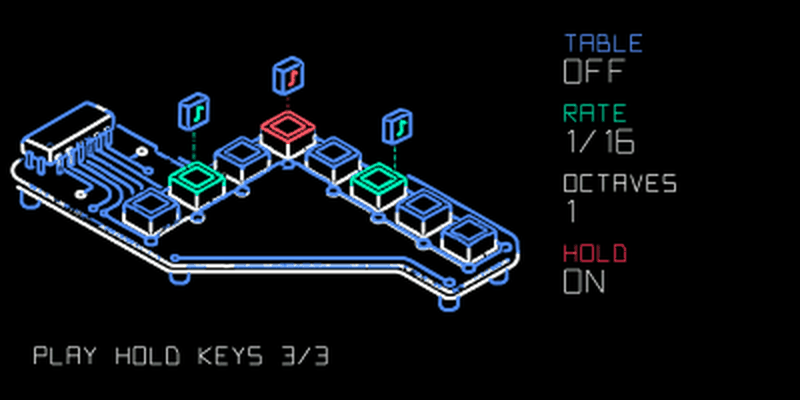
Without hold, letting go of the last key stops playback. With hold on, the notes keep playing after you let go. Once every key is up, the next key you press starts a new set. Stop or reset clears held notes.
Settings and the edited table are saved separately for synth and drum mode. Held notes and the run state are not saved. Leaving it out in the workshop removes both the plugin file and its browser row.
Quad LFO
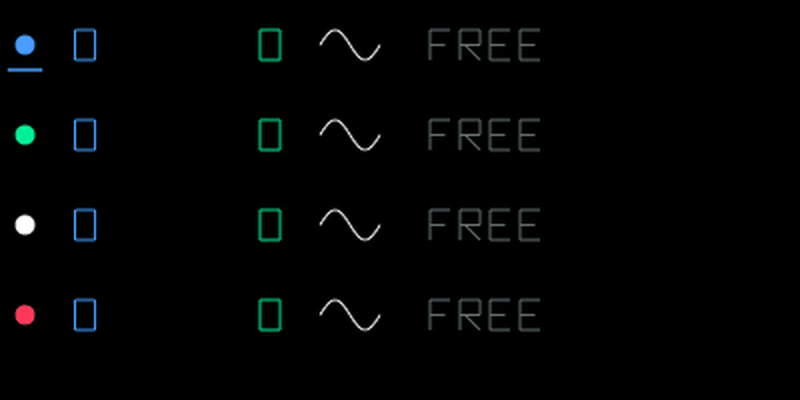
Four LFOs in one, each with its own target. They can modulate the engine encoders, the envelope, the effect, and each other. Works on synths and drums.
- Press (or ), hold Shift and press .
- Turn blue to QUAD and press .
- Push an encoder to select its LFO: blue is LFO 1, green 2, white 3, orange 4. The selected row is underlined.
On the LFO page, switches the LFO off and on. When off, modulation stops, the display ticks return to the centre and the page dims with LFO OFF. Press again to enable it.
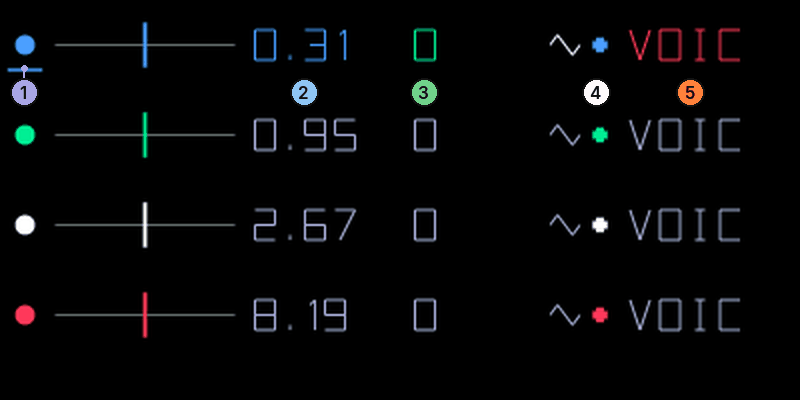
- 1The underline marks the selected LFO
- 2Speed on blue
- 3Amount on green
- 4Target on white. The dot's colour is the target encoder
- 5Type on orange
| Encoder | Main page (selected LFO) | Shift held (selected LFO, table of all four) |
|---|---|---|
| blue | Speed, 0.05 Hz to 20 Hz, or a tempo division | Phase offset, in 45° steps |
| green | Amount, -100 % to +100 % | Smoothing, 0 to 7 |
| white | Target | Wave: sine, triangle, ramp up, ramp down, square, sample & hold |
| orange | Type | Tempo sync on (turn right) or off (turn left) |
The targets are the four engine encoders, the envelope (attack, decay, sustain, release), the four effect encoders, and the frequency, amount or offset of any other LFO. Two LFOs on one target add up.
The types decide when the LFO restarts:
| Type | Behaviour |
|---|---|
| VOIC | One LFO per voice, free running |
| FREE | One LFO for all voices, free running |
| GATE | One per voice, restarts at every note |
| MONO | One for all, restarts at every note |
| SHOT | One cycle per note, then holds |
| RAND | A new random value at every note |
Oracle
Oracle and Peal are sequencers from Musica Obscura. Pick either with Shift + .
Oracle turns four geomantic figures, the Mothers, into a 16-step pattern with four lanes. Each lane plays an interval above the key in synth mode, or its own pad in drum mode. Hold a key to play; release it to stop at the next step. Hold Shift while releasing the last key to latch the pattern. Hold Shift and turn orange left to stop it.
| Encoder | Turn | Push | Shift + turn |
|---|---|---|---|
| blue | Mother 1 figure | Recast Mother 1 randomly | Rate: 1/4 to 1/32, including triplets |
| green | Mother 2 figure | Recast Mother 2 randomly | Gate: 10 % to 100 % |
| white | Mother 3 figure | Recast Mother 3 randomly | Select lane: Fire, Air, Water, Earth |
| orange | Mother 4 figure | Recast Mother 4 randomly | Right: start latched. Left: stop |
Shift + push white switches lane editing on or off. While EDIT shows, a key sets the selected lane's interval above the current root, or its drum pad, instead of starting the pattern. Shift + push orange cycles ten chord voicings in synth mode.
copies the pattern and pastes it. silences the selected lane; Shift + resets the whole pattern. Shift + the first four white keys picks pattern 1 to 4. Shift + G, A, B and C (the last four white keys) mutes Fire, Air, Water and Earth; Shift + D# mutes all. Shift + C# starts or stops the pattern. Settings are saved; playback comes back stopped.
Peal
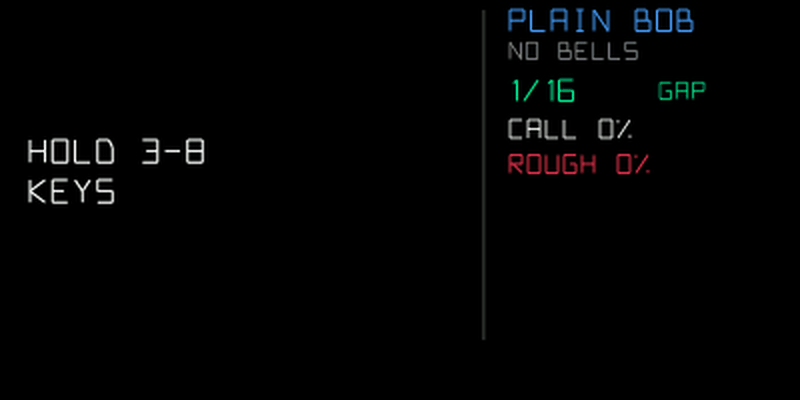
Peal plays English change ringing. Pick PEAL with Shift + , then hold 3 to 8 keys: each is a bell, and the method changes their order on each row. One or two keys are silent. When you release the last key, the current row finishes and stops. Hold Shift while releasing it to keep ringing. Hold Shift and turn orange left to stop.
| Encoder | Turn | Push | Shift + turn |
|---|---|---|---|
| blue | Method: Plain Hunt, Plain Bob, Grandsire, Stedman | Handstroke gap on or off | Octave: -2 to +2 in synth mode |
| green | Rate: 1/4 to 1/32, including triplets | Stop when the bells next return to their starting order; push again to cancel | Gate: 10 % to 100 % |
| white | Chance of an automatic call: 0 % to 100 % | Call Bob at the next call position; Shift + push calls Single | Level: 1 to 127 |
| orange | Rough striking: random lateness and loudness | Restart from the original bell order at the next row | Right: start latched. Left: stop |
A call changes the order at a set point in the method. The handstroke gap adds a step of silence after every second row. A new chord changes the bells at the next row; changing the number of bells restarts their order. Shift + C# starts or stops using the last bell set. Settings and bells are saved; playback comes back stopped.
Tape and sampler
Tools for recording, editing and sampling. hundekraft's come first: four tapes, undo, tape edits and the sampler tools are rebuilt after Maiko Pruett's #249 and #250. Markers, count-in, fast erase and the sample editor come from op1r.
Four tapes
The OP-1 has four tapes. Each has its own four tracks, clips, loop, position, tempo, album and undo history.
- Hold and press , , or .
- The tape stops, switches, and a message shows the tape and its tempo, for example "tape 2, 125 bpm".
Tape 1 is the OP-1's own tape, so it's still there if you go back to official firmware. Tapes 2 to 4 are made the first time you open them: empty, at the tempo you're using, and they only take space on the flash as you record. Hold and press the number of the tape you're on to see which one it is. to on their own still pick tracks. Official firmware only opens tape 1 and leaves the other tapes alone.
Undo and redo
Every recording can be undone, up to seven steps back: takes, punch-ins, overdubs, loop takes, lift, drop, slide (Shift + blue), split, join and the tape edits below. It works with the tape stopped or playing. Sliding a clip takes two undo steps: the first undoes the drop, the second restores the lift.
- Hold and press to undo.
- Hold and press to redo.
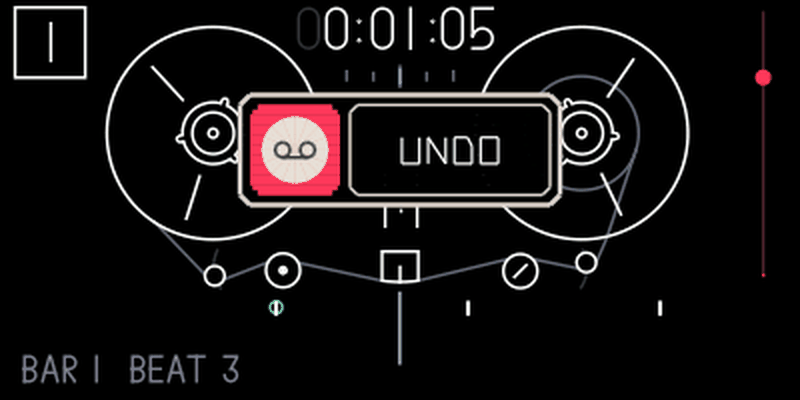
The history is saved on the OP-1, so it survives switching off. Each of the four tapes has its own. FILE counts undo history under "sounds".
Tape edits
Four edits for building a song while it plays. All of them work on the tape screen, also while the tape plays, but not while it records.
| Keys | Edit | What happens |
|---|---|---|
| Shift + | Merge | Mixes the lifted tracks together and drops the result onto the selected track at the playhead, replacing what's there. With one lifted track it's a plain drop. It takes the place of the stock Shift + |
| Hold + | Copy the loop | Copies all four tracks inside the loop without cutting anything. Needs the loop on and shorter than about 22 seconds |
| Hold + | Paste after the loop | Pastes the copy right after the loop and moves the loop onto it, so the next paste extends the song. With the loop off, it pastes after the last clip. A copy goes onto all four tracks, one lifted track onto the selected one |
| Hold + Shift + | Bounce | Mixes all four tracks inside the loop onto the selected track. The other tracks stay as they are. Needs the loop on |
A popup names the edit (MERGE, COPY, PASTE or BOUNCE) and shows the progress. Merge, paste and bounce are one undo step each; copy changes nothing on the tape, so it isn't a step. Undoing a paste takes the audio back out, but the loop stays where it moved.
Mixes are added up exactly, without the mixer's volume or pan. If the result would clip, the whole edit goes through a soft limiter.
When an edit can't run, a short message says why, such as "bounce needs the loop on", "copy needs the loop on", "loop too long to copy", "the clipboard is empty" or "no room left on the tape".
Gin
Gin is an optional drum synthesiser by SquareWave Studio, based on Eric Lewis's libpo32. Choose Gin in the workshop, then open the drum engine browser with Shift + and select GIN. DBOX and DRUM+ remain available.
Each kit has 24 drum sounds across the keyboard. Gin plays up to four synthesis voices at once. Repeating a sound chokes its previous hit; when all four voices are busy, the oldest voice is replaced. Eight factory kits appear in the Gin drum preset folder. These drum kits are separate from the downloadable synth preset pack.
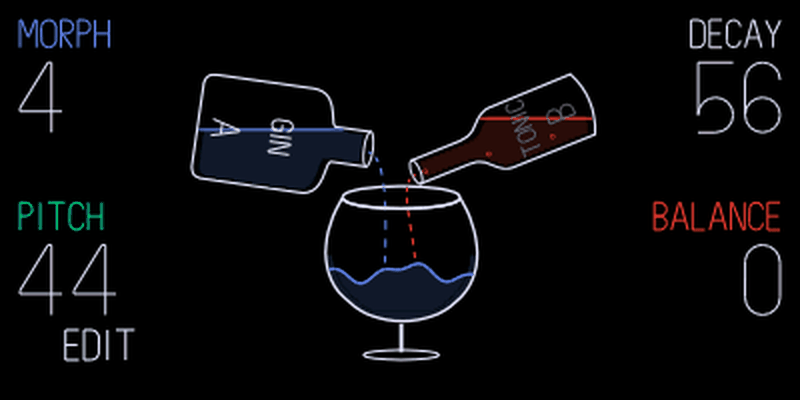
On Play, strike a key to select and play its sound. Each sound has A and B settings and its own morph position. Blue push chooses which endpoint you edit. Moving morph towards A or B selects that endpoint; at the centre, the previous edit side stays selected. Changes affect new hits; ringing hits keep the settings they started with.
| Encoder | Turn | Shift + turn |
|---|---|---|
| Blue | Morph A to B | Morph A to B |
| Green | Tone pitch | Pitch modulation amount |
| White | Tone decay | Noise decay |
| Orange | Tone/noise balance | Noise filter cutoff |
Press for Advanced. /, or the arrows, move between Tone, Tone Envelope, Pitch Mod, Noise Filter, Noise Envelope, Mix And Level, EQ and Velocity. About follows the parameter pages. Blue remains morph; the coloured labels show the other active controls. Press to return to Play.
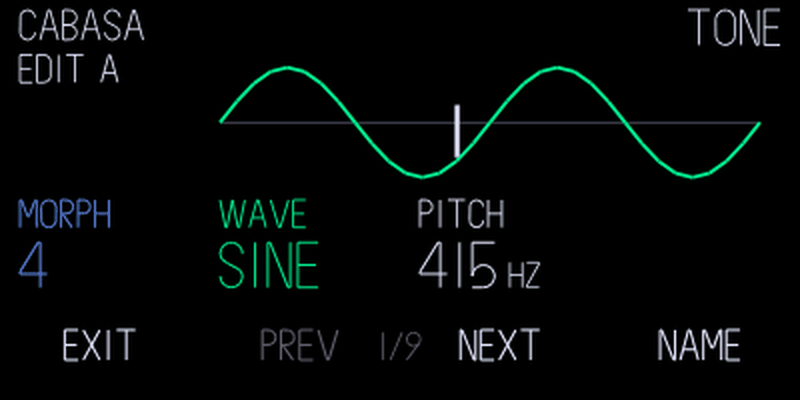
On an Advanced parameter page, opens sound naming. Blue or the arrows move the cursor, green chooses a character and orange selects insertion or deletion. applies the name; cancels. Names can contain up to 23 characters.
Applied edits and names are saved to the working slot without creating a named preset. Holding a sound-slot button creates a separate named snapshot. If SAVE RETRY appears, leave the OP-1 on and wait for saving to complete; it refers to the current slot and failed writes are retried. Choosing another drum engine replaces the working kit; save a named snapshot first if you want to keep it. Saved Gin state is retained when its plugin is missing or disabled; the compatible plugin is needed to restore that sound. A damaged saved kit is retained but will not play in Gin; choose a valid factory kit or another saved snapshot to recover the slot. This is not power-loss-proof storage.
Dense drum patterns with heavy effects or other processing can still exceed the OP-1's audio budget. The four-voice cap limits Gin's work; it does not guarantee every combination is crackle-free. Watch the resource monitor's peak line and reduce the combined load if needed.
Gin's factory sounds adapt CNTR RNDM's kits. SquareWave Studio, Eric Lewis and CNTR RNDM's credits and source notices are retained in the plugin's corresponding source.
Sampler tools
Three tools on TE's own sampler screens, for a synth sampler sound and a sampled drum kit. They're there whenever the stock sampler screen shows; while op1r's sample editor is open, they step aside.
Zoom. Push white to zoom in around the marker you moved last: 2x, 4x, 8x, 16x, up to 32x. Shift + push white zooms out again. Zooming doesn't move start or end. On the synth sampler, hold blue pushed and turn it to move the start in fine steps. Markers outside the view show as arrows at its edges. The zoom resets when you change the sound, the slot or the drum key.
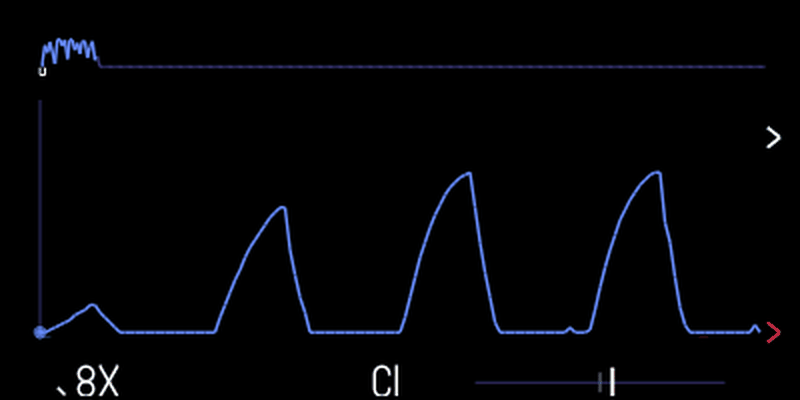
Note and tuning (synth sampler). The screen shows the note of the part you use, in TE's numbering (middle C is C3), with a tuner from -50 to +50 cents. The needle turns green within 3 cents. Shift + push green retunes the sound so the key of that note plays the sample at its own speed, and the note turns green. Shift + push green again puts the old tuning back.
Fit to bars. Stretch the sample to exactly 1, 2, 4 or 8 bars at the OP-1's tempo:
- Push orange. The fit panel opens.
- Turn blue to pick 1, 2, 4 or 8 bars. Lengths the sample can't fit are skipped.
- Turn green to choose KEEP PITCH (stretch the time, pitch stays) or TAPE (change the speed, pitch follows).
- Push orange again to fit. Any other key closes the panel.
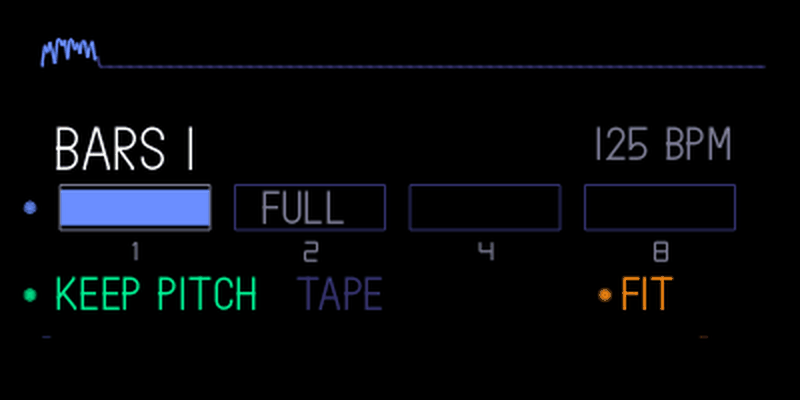
Keys and knobs wait while it fits. Fitting a sample to bars is outside tape undo. The markers follow the new length. On a drum kit the whole used part, from the earliest start to the latest end, is fitted and every key's markers move with it.
Markers
On the tape screen:
| Control | Does |
|---|---|
| Push orange | Set a marker at the playhead |
| Shift + push orange | Remove the marker under the playhead |
| Shift + turn orange | Jump to the next or previous marker, also while playing |
Up to 32 markers, saved with the tape. Plain orange still sets the record level.
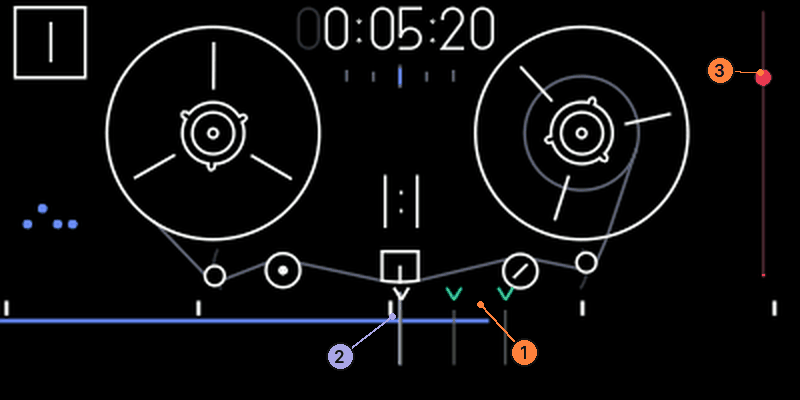
- 1Markers, set by pushing orange
- 2The playhead
- 3Record level, still on orange
Punch-in
Punch-in uses tape markers. Hold and press to arm it: the markers turn red. Play the tape. Recording starts at the next marker and stops at the one after. Press to stop, or + again to disarm.
Count-in
With the tape stopped, hold and press . You get 4, 8 or 16 clicks, then the tape starts recording on the next beat. You can let go of . cancels. Set the length on the settings page.
The metronome also accents beat 1 of every bar, an octave higher. Bars count from the start of the tape, or from where a count-in recording started.
Fast tape erase
The stock erase gesture (Shift + , then press to together) now only clears the parts of the tape that have audio, so it takes seconds instead of minutes. It can't be undone, and it clears the undo history.
Sampler+
The synth sampler with envelopes, filtering and loop controls.
Choose sampler+ in the synth type browser (Shift + ). A sampler slot keeps its recording; another engine becomes a sampler using that slot's sample buffer. The audio remains a normal sampler patch, with sampler+ settings saved alongside it. Removing or disabling the plugin plays the recording through the stock sampler; reinstalling restores its extras.
Load then Shift + pick sampler+
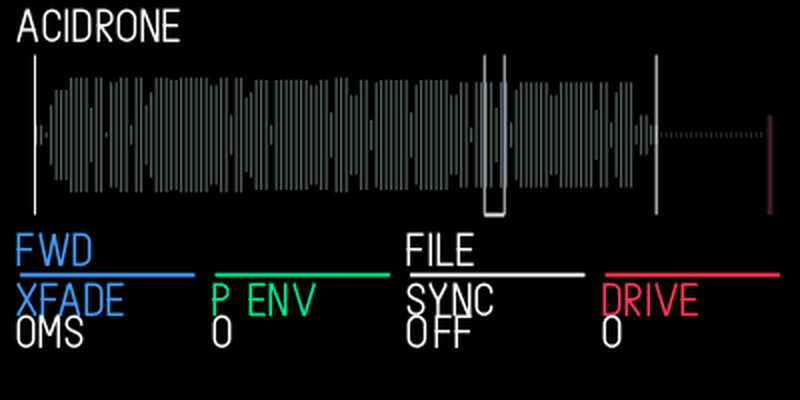
| Encoder | T1 turn | T1 with Shift | T1 push |
|---|---|---|---|
| blue | Loop crossfade | Random start | Forward / ping-pong loop |
| green | Pitch envelope | Pitch-envelope time | Keep looping during release |
| white | Tempo sync by repitching | Velocity to start position | Sample browser |
| orange | Drive | Sample gain | Reverse |
Set the sample region and loop points in the sample editor. Crossfade applies to forward loops. The white sample browser lists factory and user sampler presets: turn white to choose, push it to load while keeping sampler+, or push orange to cancel. also closes the browser. The browser follows the expanded preset table used by hundekraft.
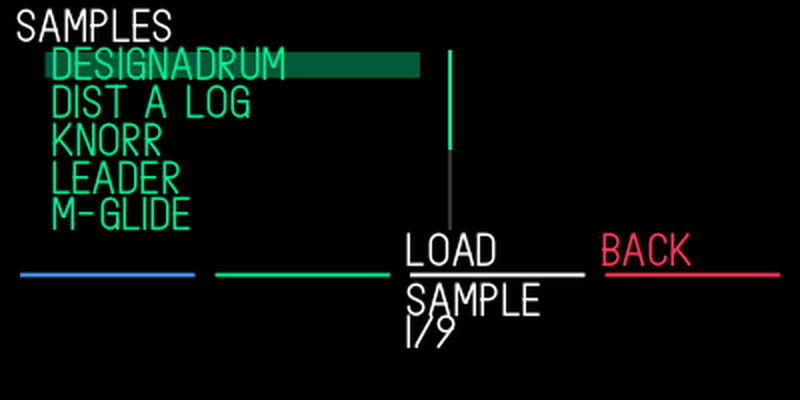
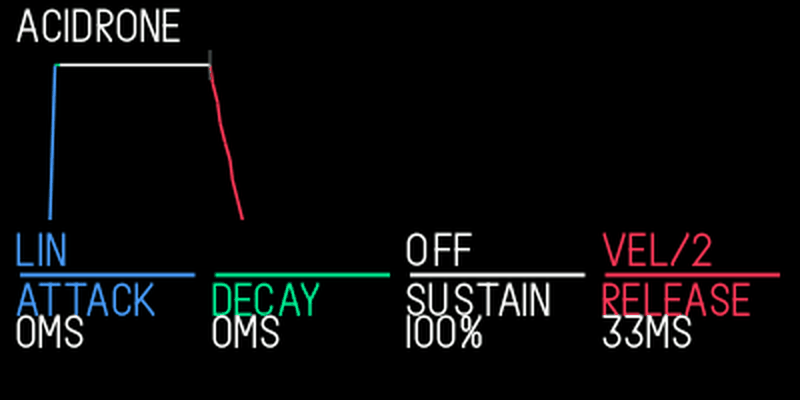
| Encoder | T2 turn | T2 with Shift | T2 push |
|---|---|---|---|
| blue | Attack | Filter cutoff | Linear / exponential envelope |
| green | Decay | Resonance | Hold time |
| white | Sustain | Envelope to cutoff | Off / low-pass / high-pass / band-pass |
| orange | Release | Velocity to cutoff | Velocity to level |
Use T3 for effects and T4 for LFO modulation.
Sample editor
A proper editor for the sampler: trim, fade, normalise, reverse, set loop points and cut by transients. There is one for synth samples and one for sampled drum kits.
Open the editor
- Synth: load the SAMPLER engine, then hold and press .
- Drums: on a sampled drum kit, hold and press . Play a pad to edit it.
The same combination closes the editor and saves. Tapping or by itself also closes it and enters that mode; holding the mode key for the scissors combination keeps working. Leaving for another mode closes it too.
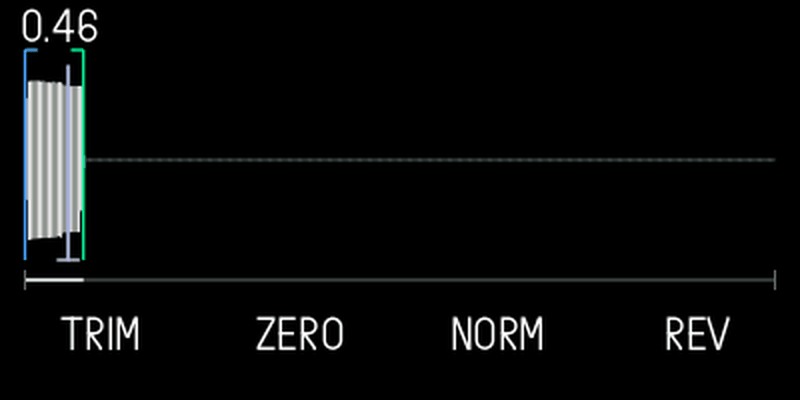
Controls
| Control | Does |
|---|---|
| blue, green | Start and end markers. Keys play the selection straight away |
| Push blue | Switch blue and green to the loop start and end (synth only) |
| white | Zoom. Shift + turn moves the selection |
| orange | Volume of the whole sample, -60 dB to +24 dB, applied on close. Shift + turn scrolls |
| Push orange | Snap: zero crossings, transients, off |
| Trim to the selection. Shift: remove DC offset. Drums: fit (trim silence) |
| Zero the selection. Shift: fade |
| Normalise. Shift on drums: auto-cut |
| Reverse |
| Shift + | Undo a trim (synth) or the last auto-cut (drums) |
| , , | Copy, cut, paste the selection, also to tape or another sampler |
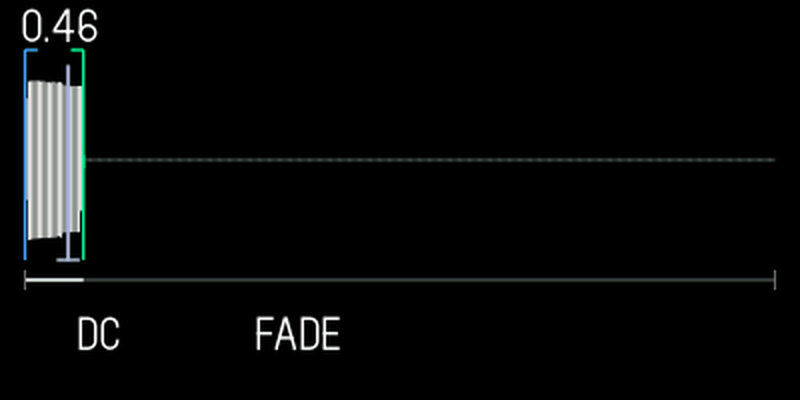
Fades: Shift + opens fade mode. picks in, out or both, picks linear, power or exponential, and blue sets the length. applies it, cancels.
Auto-cut (drums): Shift + . In hits mode it finds the first 24 hits, with blue as sensitivity. In equal mode blue sets 1 to 24 slices. applies, cancels.
System and storage
Storage, names and the OP-1's own pages. FILE, the flash check, naming and safer recording are hundekraft's, rebuilt from how Maiko Pruett's #249 and #250 work, without any of Maiko's code. The system pages after them come from op1r.
FILE: what uses your storage
- Hold Shift and press COM. The COM screen opens.
- On the OP-1 tab (), hold Shift and press COM again. FILE opens. The same keys switch back. In CTRL, DISK or OPT, Shift + COM does what it always did; press first to reach FILE.
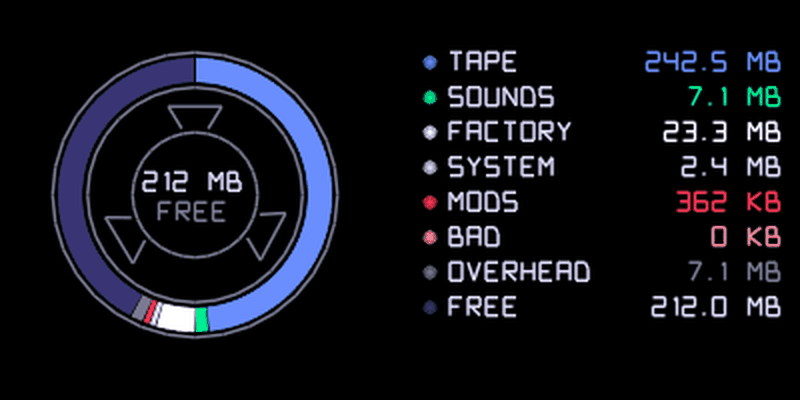
The reel and the list show tape (all four tapes), sounds, factory content, system, mods (plugin files), bad blocks, overhead and free space. Push any encoder except blue to count again. A mode key leaves COM, and COM opens on its stock screen next time.
Flash check
In FILE, push blue. The OP-1 reads every block of its storage, without changing anything, and sorts them:
| Count | Means |
|---|---|
| HEALTHY | Read fine |
| FIXED | Read with a small error that was corrected |
| ERRORS | Has a page that couldn't be corrected |
| DEAD | Already retired by the file system |
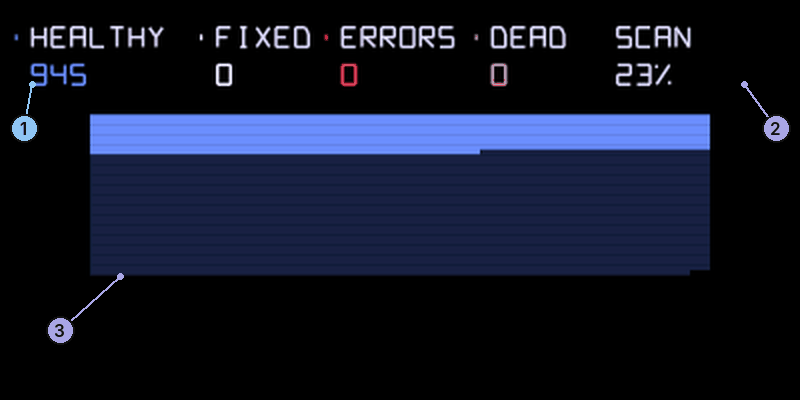
- 1The counts: HEALTHY, FIXED, ERRORS and DEAD
- 2Scan progress, or PAUSED
- 3One dot per block, in the same colours. Dark blue: not read yet
The map below has one dot per block: blue healthy, white fixed, red errors, pink dead, and navy for blocks not read yet. SCAN shows the progress. The check pauses (PAUSED) while the tape runs, in disk mode or when you leave the screen, and carries on when you come back. Push blue again to start a new scan, or another encoder to go back to FILE. Nothing is saved: run it again any time.
Name your sounds
- Hold a sound key (1 to 8) to save as usual. When the OP-1 would save, a NAME screen opens instead.
- Turn blue to move one letter, green to move one row.
- Push blue or white to add the letter. Press to delete one.
- Push orange, or press the same sound key again, to save with that name.
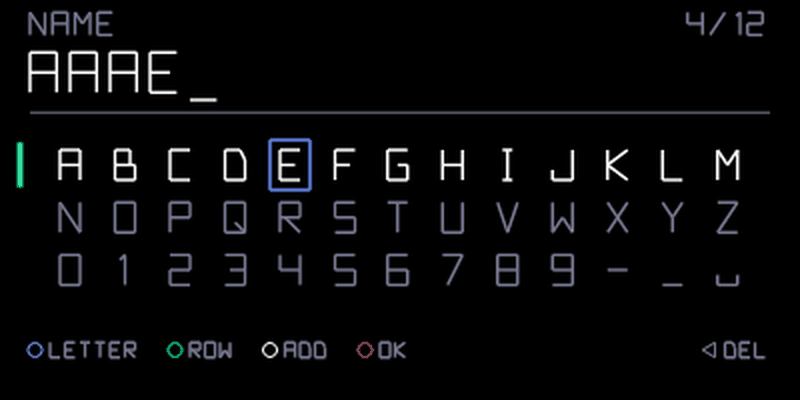
Names are up to 12 characters: a to z, 0 to 9, dash, underscore and space. If the name exists, the new sound gets _1 added. Leave it empty, or press a mode key, to get the usual date-stamp name. It works for synth and drum sounds.
Safer recording
Safer recording prevents a fault that could reduce available storage while recording. The flash check shows the condition of your storage. Previously marked bad blocks remain unavailable until a format. Formatting erases everything, so back up first.
When the Four tapes plugin is included, REC also shows "flash full" and refuses to start with less than 32 MB free.
Resource monitor
Shift + , then . Shows CPU, audio load, memory, disk and MIDI activity. Press again to close it. Turn blue to cycle through audio load, voices, plugins and disk details. The AUDIO bar shows instrument, envelope, effect and other work; its peak marker helps spot brief bursts of high load.
If an audio overload message appears, the OP-1 may have temporarily replaced a synth or effect to keep playing. A bypassed synth falls back to Iter; an effect falls back to Filter. Restart to restore it, then reduce the load. Short peaks can still crackle before this protection acts.
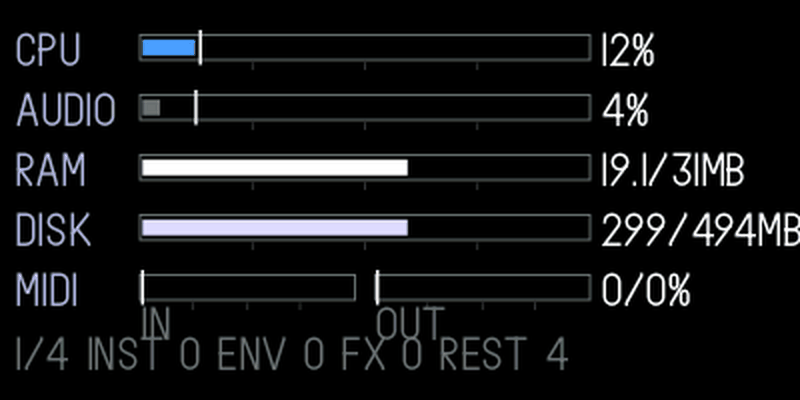
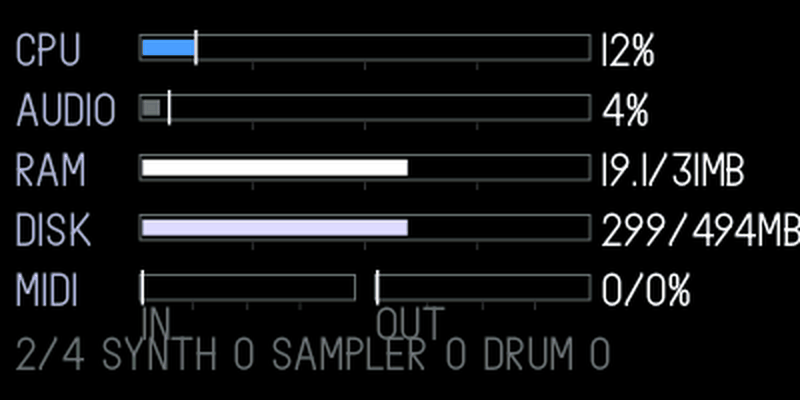
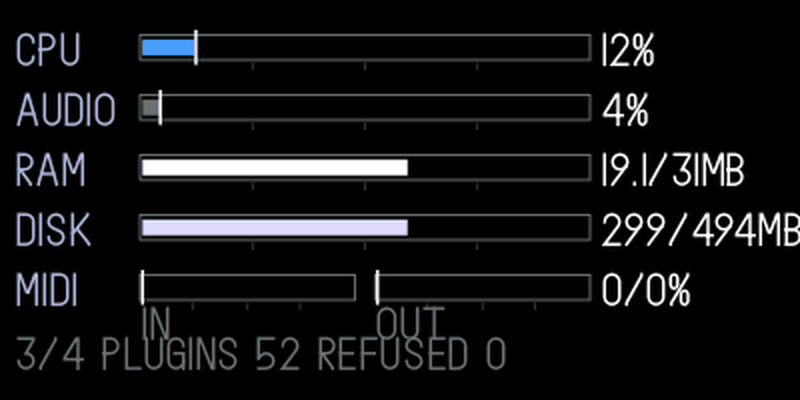
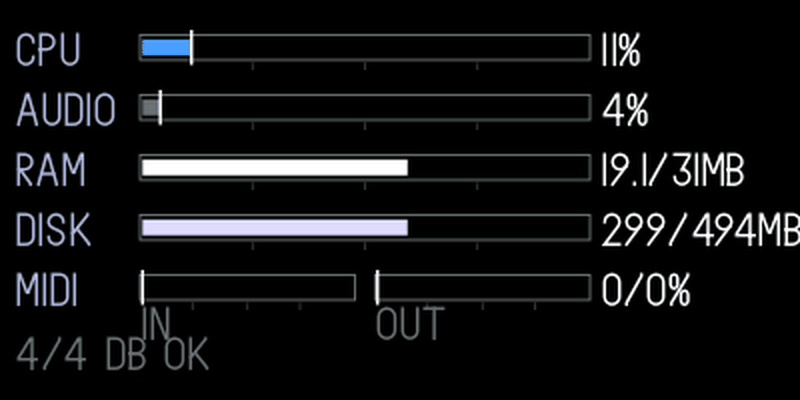
USB output
Shift + , then . Turn blue to choose MASTER or MASTER + TRACKS.
With MASTER + TRACKS the OP-1 sends six channels to the computer over USB: main left and right on 1 and 2, and the four tape tracks on 3 to 6, before the faders. MASTER (the default) uses less processing than sending the individual tracks as well. On Windows, remove the old OP-1 audio device if it still shows two channels.
Settings
Shift + , then . Turn blue to set the count-in to 4, 8 or 16 beats. Turn green to switch the MIDI sequencer on or off.
MIDI control
Over USB MIDI, on the OP-1's MIDI channel, a computer or controller can press keys and turn encoders.
- Keys: a CC number presses a key (value 64 or more) or lets go (below 64). Examples: 5 help, 6 metronome, 7 to 10 synth, drum, tape and mixer, 11 to 14 T1 to T4, 38 REC, 39 PLAY, 40 STOP, 43 Shift, 49 COM.
- Encoders: CC 102 to 105 turn blue to orange. Values 1 to 63 turn right, 65 to 127 turn left.
- Mixer: CC 106 to 109 set track volume, 110 to 113 pan, 114 to 117 mute, and 118 tape input level.
- Synth knobs: CC 53 to 60 and 72 to 79, see CC automation.
MIDI sync: when the OP-1 syncs to MIDI, MIDI START restarts the pattern sequencer, Euclid and Dots so the first step lands on the master's first clock.
The original game is available through the Lander firmware option, off by default.
OP-Z controller mode is a hidden stock mode that op1r makes reachable from a computer by SysEx. Most people won't need it.
Lander
Lander is the original OP-1 game, available as an optional firmware setting. Tick Lander under System and storage in the workshop before building. It is off by default. This uses Teenage Engineering’s existing game and artwork; it is not a downloadable kennel plugin.
Install the firmware, then hold , , and together to open the game. Release the keys after entry. The title screen says CHOPLIFTER BETA; press a piano key to start. Press a mode key to leave.
Changing the Lander option requires a firmware update. Update OP-1 detects that and prepares a full firmware update, including your selected plugins; choose original R246 if asked. The review shows whether Lander will be enabled or disabled. Confirm with after transfer and wait for the tape screen. Later plugin changes remain plugin-only while this core option stays the same. There is no .knl file to remove for Lander.
Lander is off until you choose it in the workshop and install that firmware. Your choice is saved in this browser along with your other selections.
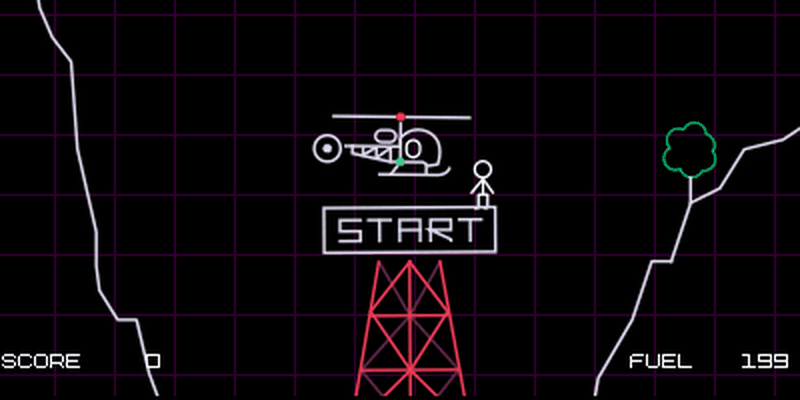
Oblique Strategies
Shift + shows the clock or a random card from Brian Eno and Peter Schmidt's Oblique Strategies, whichever you looked at last. Press Shift + again to switch between them. A new card turns up each time you switch to it.
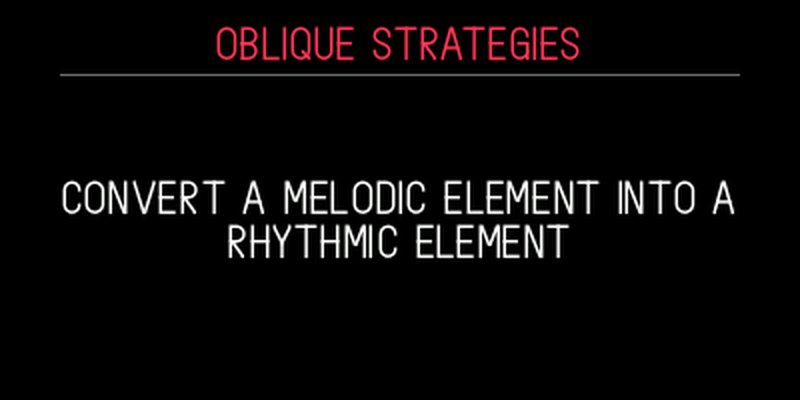
From either view, , , and open the resource monitor, USB output, settings and chord mode.
Presets
The preset pack from the workshop is matched to your build. With everything selected it has 152 presets:
| Group | Presets |
|---|---|
| op1r engines | 12 each for Supersaw, FM Bell, Granular and Iter |
| hundekraft synths | 12 each for Wavetable, Taffy, Pew and Elg |
| Effect pairs | 2 per hundekraft synth for each of Washer and Snowglobe |
| EVA | 8 |
| MBIRA | 8 |
| Oxbow | 16 |
| SID | 8 |
SID covers triangle/pulse bass, saw/sync leads, pulse keys, soft triangle, ring bell and noise percussion. MBIRA adds Muted Wood, Steel Duet, Bottle Caps and Glass Dusk. Selected keys and pads include restrained Plate, Warble, Crush or Father processing and shallow LFO motion; some sounds remain dry.
The effects have no presets of their own: the 16 effect pairs are synth sounds that use Washer or Snowglobe. Good ones to start with are Warm Ensemble, Frozen Toffee, Midnight Mass and Aurora. The Musica Obscura sounds have no presets in the pack.
See Install the presets for how to get them onto the OP-1.
Troubleshooting
The OP-1 hangs on the boot screen. Hold COM while switching on and install a new build. If you went back to stock or an older build, a saved sound may use an effect that firmware doesn't have; see Go back, or get unstuck.
The workshop cannot find the OP-1. Connect it by USB and wait for the tape screen before checking or sending. If you just confirmed an update, let it finish restarting. Otherwise reconnect the USB cable and try again. Use a supported desktop browser and allow MIDI access when asked.
The workshop rejects my firmware file. It only accepts the original, unmodified op1_246.op1. Get a fresh copy from Teenage Engineering.
The OP-1 says "plugin files not loaded" when it starts. One or more plugin files failed to load or were skipped after an unfinished start. Press "Refresh" in the workshop to see which files and why. Files deliberately switched off are not counted in this warning. Send a replacement if a file is damaged. "skipped (last boot failed)" means plugin files were skipped for this start; they are tried again on the next restart.
A sound plays as Iter, or its effect turned into the filter. Its plugin may be missing, switched off, or bypassed by audio overload protection. Refresh in the workshop for missing or disabled files. If an overload message appeared, restart to restore the plugin, then reduce the load; see Resource monitor. Installing a missing plugin restores sounds that use it.
MIDI Tape does not open with SEQ + TAPE. Confirm MIDI SEQ is on in Settings and that the MIDI sequencer plugin is loaded in Refresh. If startup skipped files, restart and let startup finish. Open Tape first, then hold SEQ and press TAPE. If it still fails, keep the firmware identity and plugin inventory before trying recovery. Formatting is not a normal installation step.
Fast chords crackle, but average audio load looks fine. Watch the peak marker in the Resource monitor: short bursts of high audio load can cause crackles. Try fewer simultaneous notes, a shorter release, or a lighter effect. Restart if an overload message bypassed a plugin.
A sound reports that its FX or LFO was reset. During slot loading and preset import, missing or invalid FX/LFO settings are replaced with stock defaults and switched off. Only the invalid block is reset: the other valid settings, sample and envelope are kept. Drum pad values outside their allowed ranges are corrected too. The OP-1 shows a message when it repairs a sound. Other invalid preset data may still prevent importing; keep the original file.
Undo says "still writing". The OP-1 is still saving the last take. Wait a moment and try again.
I can't switch tapes. Stop recording first, and leave disk mode. While a clipboard copy runs, a tape switch is refused: wait for the copy to finish, then try again. A new tape needs 64 MB free.
The tape doesn't record audio. The MIDI sequencer view is open, and REC belongs to it. Press to close it.
Granular makes no sound. It needs a recording first. See Granular.
Dots won't start. Switch recording off with before you turn orange. See Make Dots play.
Black keys don't play chords. Scale mode silences black keys outside its scale. Switch scale mode off to reach those chords.
Presets went missing after syncing. You went over the preset limit. hundekraft 3.0 has a fixed limit of 300 user synth presets; remove some sounds before syncing more.
In a room is silent. Push orange to capture a loop first. Large rooms hum very low.
My old reverb sounds wrong. It was saved before op1r 24; mix and tone are swapped. Turn them back.
Make your own plugin
Make a synth, effect or tool and share it as one .knl file. You only compile your plugin; you don’t need to build the full firmware.
Give your coding assistant the plugin development guide — llms.txt, and describe the sound or behavior you want. It includes the SDK download, templates, build commands and API reference.
To try the result, add the .knl under Your plugins in the workshop and press Update OP-1. Share the file with its controls, source and license information.
Credits
hundekraft is an independent project, not affiliated with Teenage Engineering. It patches Teenage Engineering's OP-1 firmware R246 in your browser. Since 3.0 it runs on kennel, hundekraft's core built from op1r's source.
- op1r by pcppcp, the foundation of this firmware: github.com/pcppcp/op1r. Source under GPL-3.0-or-later. The MIDI sequencer and CC automation are ported from op1r 35. Clouds and Reverb are ports of Mutable Instruments' Clouds and Elements by Émilie Gillet. The Reverb screen art is by DAN76; Aether’s satellite artwork is by DAN76/Rackes. The Iter lab screen comes from op1repacker.
- Father concept and visual reference by xylograph on Reddit. Hundekraft reconstructed the room illustration from the supplied demonstration and wrote a separate, original kennel reverb DSP; xylograph’s DSP is not included.
- SID adapts Hermit (Mihaly Horvath)’s cRSID 1.58 light renderer: hermit.cucumalac.hu. The kennel instrument and its artwork are by hundekraft.
- Musica Obscura by ultralazr: github.com/ultralazr/op1-musica-obscura. Texts, screens and sounds under CC BY 4.0, code under GPL-3.0-or-later.
- Maiko Pruett's #249 and #250 (maikopruett.com/op-1) are where undo, naming, scale mode, FILE, the flash check, the tape edits, four tapes and the sampler tools come from. hundekraft rebuilt those utilities from how they work; none of Maiko’s utility code is used. Crush, Warble and Plate separately reconstruct Maiko’s #250 algorithms and custom artwork as native kennel effects.
- HAIL is a port of Mutable Instruments Beads by Émilie Gillet (MIT).
- OberVave by zvenson (GPL-3.0), ported to the OP-1 as Oxbow.
- Oblique Strategies cards by Brian Eno and Peter Schmidt. op1r's card screen comes from ultralazr's op1-oblique-strategies.
- hundekraft synths and effects (including EVA, MBIRA and STUTTER), chord mode, kennel and the workshop by Hundekraft: github.com/Hundekraft/op1-workshop.
OP-1 is a trademark of Teenage Engineering. Their guide for everything stock: teenage.engineering/guides/op-1/original.
Randomiser algorithm/history and panel by Lewis-Clayton / pcppcp (op1r source); native kennel integration by Hundekraft.
Gin is by SquareWave Studio, based on libpo32 by Eric Lewis. Its factory sounds adapt CNTR RNDM’s kits. The native source, MIT component notices, GPL firmware permission and creator-published kit permission records are retained in the corresponding source. This port does not imply endorsement by Teenage Engineering or Sonic Charge.